
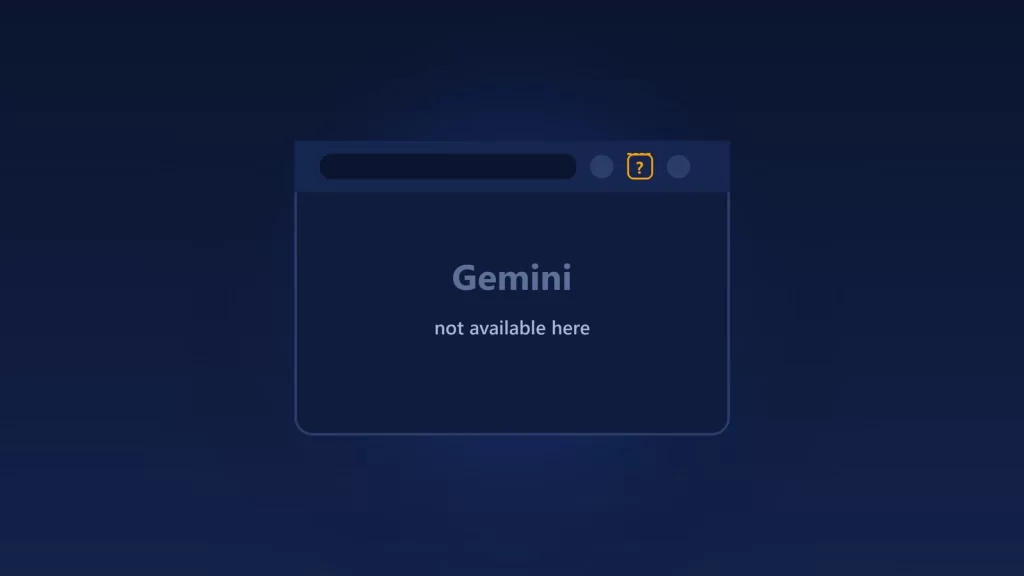
If Gemini in Chrome doesn’t show up for you, the cause is usually one of Google’s requirements rather than a bug. The most common ones are where you are, the account you’re signed in with, and policies on your PC. On a computer you need to be signed in to Chrome, on the latest version, outside Incognito, in a supported region and with a supported device language. Work and school accounts need an administrator to turn it on. The region list for adults doesn’t include EU countries such as Germany, France, Italy or Spain, which explains a lot of “not available in your location” messages. Here’s how to check each requirement, and why editing Chrome’s internal files isn’t the answer.
One thing first: Gemini in Chrome is the cloud assistant you open from the browser toolbar. It isn’t the same as Gemini Nano, the on-device model that Chrome downloads for some features. Turning the on-device model off, as described in our guide to removing weights.bin, doesn’t affect Gemini in Chrome, and the reverse is true as well.
Google’s requirements on a computer
From Google’s Gemini in Chrome availability page, for Windows, Mac and Chromebook Plus:
- Be 13 or older (or the minimum age in your country) and in a supported region.
- Use the latest version of Chrome.
- Be signed in to Chrome. It isn’t available in Incognito.
- Set your device to a supported language.
- If you’re over 18 and use a work or school Google Account, your administrator has to enable it.
Google also says it’s “gradually releasing Gemini in Chrome, so it might not be available to you just yet,” even if you meet every requirement.
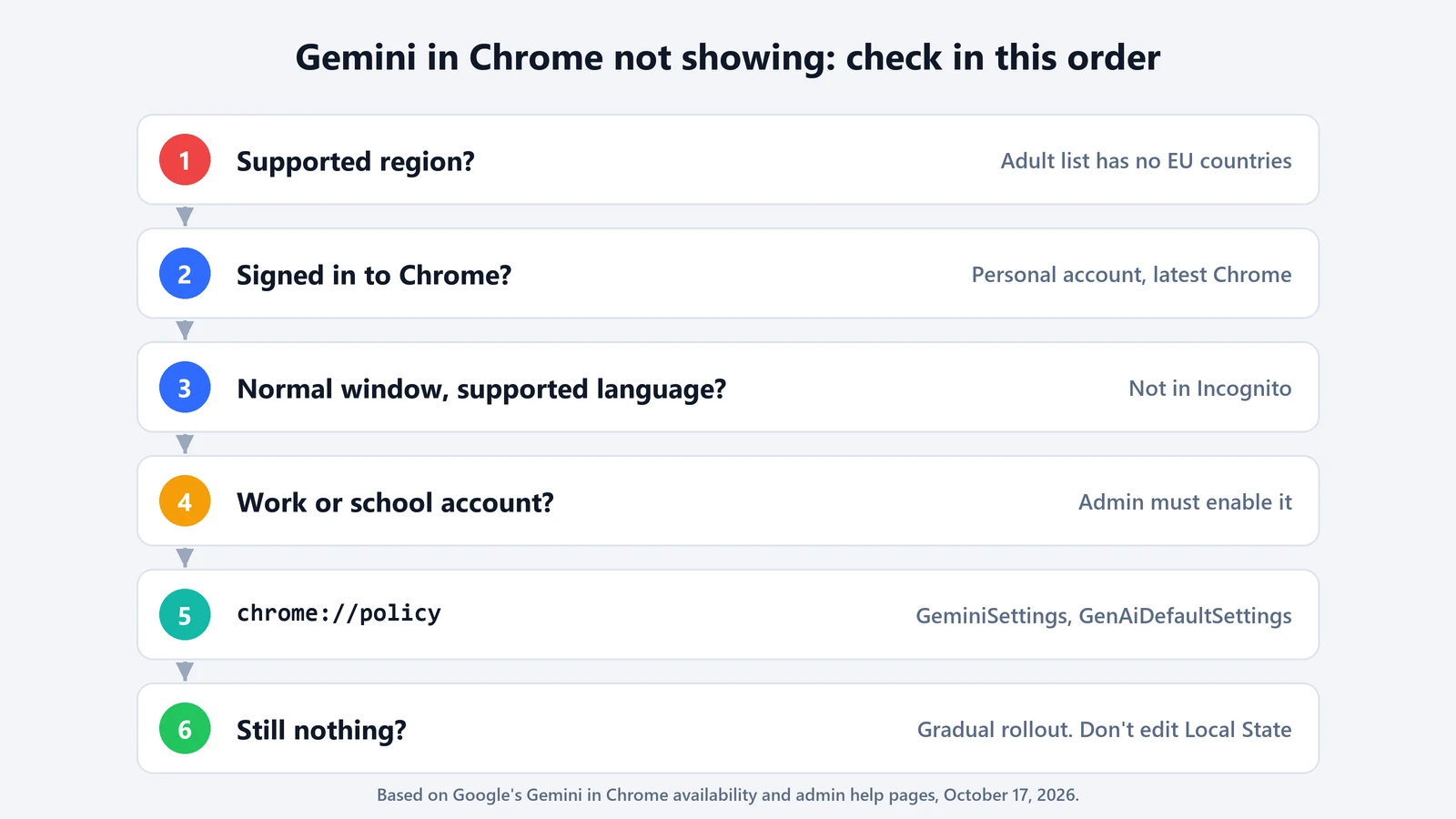
Check 1: your region
Google publishes separate region lists for users 18 and older and for younger users. As of October 17, 2026, the list for adults covers much of the Americas, Africa, Asia and Oceania, plus the United Kingdom. It doesn’t include Germany, France, Italy, Spain, the Netherlands, Ireland or Sweden. If you’re in one of those countries, the missing button is expected, not a fault on your PC. Check Google’s list for your country, because it changes as the rollout expands.
Check 2: your account and Chrome itself
- Make sure you’re signed in to Chrome with a personal Google Account. Being signed in to Gmail in a tab doesn’t count. You can see the account at the top of Settings > You and Google.
- Update Chrome: open Settings > About Chrome and relaunch if prompted.
- Use a normal window. Google says the feature isn’t available in Incognito.
- Check your device language against Google’s list of supported languages, on the same availability page.
Teen accounts are a separate case. Parents who supervise a child’s account can turn Gemini in Chrome off with Family Link.
Check 3: whether a policy blocks it
On a work or school account, or on any PC managed by an organization, the decision may not be yours. Google’s administrator guide says Gemini in Chrome needs two things enabled: the Gemini app setting for the account, and Chrome’s GeminiSettings policy.
To see what applies to you, open chrome://policy and look for these two policies:
- GeminiSettings. Its definition in Chromium has two values:
0allows Gemini integrations, and1blocks them. If it isn’t set, the next policy decides. - GenAiDefaultSettings. This sets the default for Chrome’s generative AI features. With
2, they’re not allowed, and Google’s table shows that this makes GeminiSettings default to “Do not allow.”
If either one is set to block, ask your IT team. Seeing Your browser is managed by your organization in Chrome’s menu, or entries at chrome://management, tells you policies are in play. At home, an old policy left by software or a previous setup can also be the cause. The policy page shows where each value comes from.
Don’t edit Chrome’s Local State file
Some sites suggest closing Chrome and editing its Local State file to change the “variations country” or flip an internal eligibility flag. That’s not a method Google documents. It changes internal profile data that Chrome can overwrite at any time, and it can misrepresent your location to get around the region list. If the region list is what’s keeping it from you, the honest answer is to wait for the rollout, or use the Gemini web app in a tab, which has its own availability rules.
If you’d rather keep AI features off in Chrome, the same policies work the other way. And if what you want is AI that runs entirely on your device, Chrome’s on-device model is covered in our explainer on the Prompt API.