
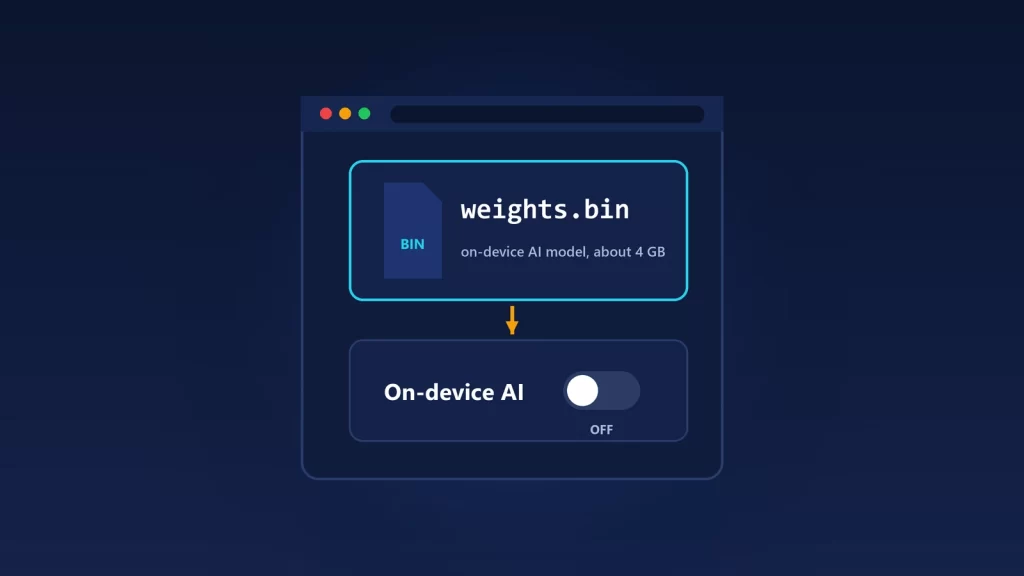
The weights.bin file in Chrome’s folder is Gemini Nano, the AI model Chrome downloads to run some features on your own device. Deleting it by hand doesn’t stick, because Chrome downloads it again. The way to remove it for good is to turn off On-device AI in Chrome’s settings. That deletes the model and stops new downloads for as long as the setting stays off. If you manage several computers, or you want a lock that a user can’t flip back, use the GenAILocal policy set to 1. This guide covers both, on Windows, macOS and Linux, plus how to check the file is really gone.
What weights.bin is and why it showed up
Google’s help page on managing on-device AI models in Chrome says Chrome may download generative AI models “in the background,” so the features that use them are ready when you need them. Google lists features such as help with writing, scam warnings, page summaries and tab organization. Chrome only downloads the model on devices that qualify. The help page asks for an unmetered connection and about 20 GB of free disk space. Chrome’s developer documentation puts the free space at 22 GB, plus more than 4 GB of VRAM, or 16 GB of RAM and 4 CPU cores.
The file is large. PCWorld measured weights.bin at about 4.27 GB on a Mac in its May 2026 report. Google says the exact size changes as the model updates and shows the current figure at chrome://on-device-internals. The same developer page says Chrome removes the model on its own if free space drops below 10 GB after the download, then downloads it again once you have the space back. So a model that comes and goes may just be Chrome reacting to a nearly full drive.
The model lives in a folder named OptGuideOnDeviceModel, inside Chrome’s user data folder:
- Windows:
%LOCALAPPDATA%\Google\ Chrome\ User Data\ OptGuideOnDeviceModel - macOS:
~/Library/Application Support/ Google/ Chrome/ OptGuideOnDeviceModel - Any system: open
chrome://versionand look at Profile Path. The model folder sits one level up, next to the profile folder.
The folder name is an internal detail, and it’s already changing. In Chromium’s source code, OptGuideOnDeviceModel is marked as a legacy path, and newer models delivered through a manifest go to a folder called OptGuideManifestModel. That’s one more reason not to rely on deleting folders.
Option 1: turn off On-device AI (one computer)
- In Chrome, open the three-dot menu and select Settings.
- Open AI Innovations. Some earlier versions showed the toggle under System instead. If you can’t find it, type on-device in the settings search box.
- Turn off On-device AI.
According to Google, turning it off does three things. Chrome deletes the model files. Features that rely on the model stop working. And Chrome won’t download the model again while the setting is off, “even if you try to use a feature that requires them.” PCWorld saw the file disappear right after flipping the switch on its Mac.
Two limits are worth knowing. First, the setting is per user and per device, so it only covers your account on that machine. Another person on the same PC, or you on a different laptop, keeps their own setting. Second, the toggle isn’t there on every device: Google says this setting and the on-device features aren’t available everywhere. If your computer doesn’t qualify, Chrome shouldn’t have downloaded the model in the first place.
Option 2: use the policy (several computers, or a lock)
Chrome has an official policy for exactly this, GenAILocalFoundationalModelSettings. Its definition in Chromium is simple. With the value 0, or if it isn’t set, Chrome downloads the model automatically. With 1, Chrome doesn’t download it and deletes the copy it already has. It’s supported on desktop Chrome from version 124. It applies to the whole browser rather than one profile, and it takes effect without a restart.
Unlike the toggle, a policy can’t be undone from Chrome’s settings. That’s useful on shared or family computers, and it’s what Google’s help page refers to when it says enterprise installs follow Chrome Enterprise Policy. Once any policy is set, Chrome shows that the browser is managed. That’s expected.
Windows
Open Terminal (Admin) or an elevated Command Prompt and run:
reg add "HKLM\SOFTWARE\Policies\Google\Chrome" /v GenAILocalFoundationalModelSettings /t REG_DWORD /d 1 /fThis creates the policy key if it doesn’t exist and adds a DWORD value of 1, which is what the Registry Editor route does by hand. To undo it later, delete that value.
Linux
Google’s Linux policy instructions use JSON files in /etc/opt/chrome/policies/managed. Chrome reads every file in that folder, so you can keep this policy in a file of its own:
sudo mkdir -p /etc/opt/chrome/policies/managed
echo '{ "GenAILocalFoundationalModelSettings": 1 }' | sudo tee /etc/opt/chrome/policies/managed/on-device-ai.json
Google adds two cautions: keep the folder writable only by admins, and don’t set the same policy in two files, because conflicting values give undefined behavior. These paths are for Google Chrome. Chromium packages from your distribution may read policies from a different folder.
macOS
On a Mac, Google’s documented route is a configuration profile. You add the key to a com.google.Chrome property list, turn it into a .mobileconfig profile, and install it with your device management tool. If the Mac isn’t managed, the toggle in Option 1 is the simpler choice. Google doesn’t document a supported shortcut for unmanaged Macs.
What not to do
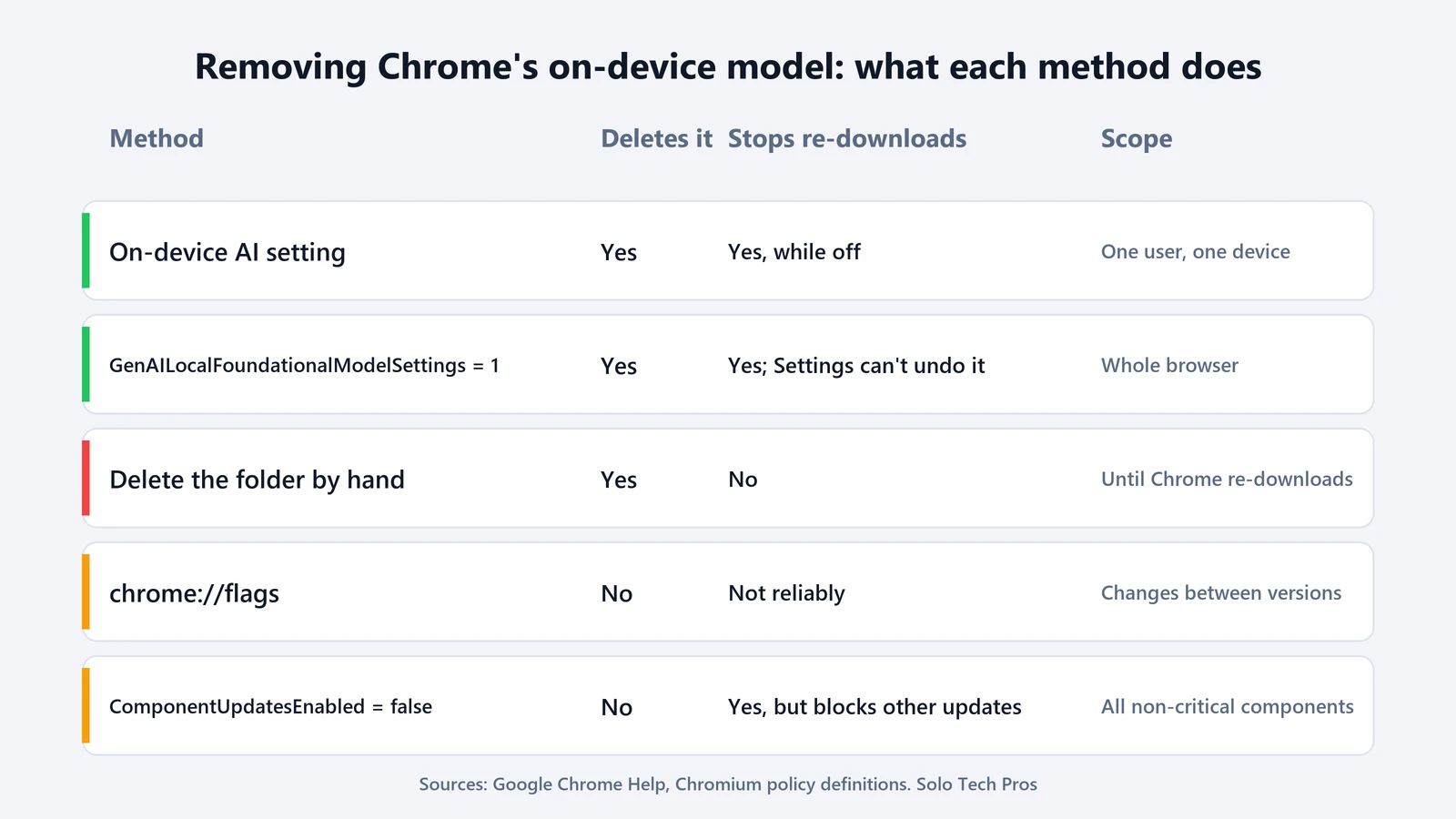
- Deleting the file or folder by hand. Google says manual deletion “is not recommended and may not prevent future downloads.” If you delete it while On-device AI is still on, Chrome is entitled to download it again.
- Locking the folder with a read-only placeholder. It’s a workaround that circulates online. It fights Chrome’s updater instead of telling Chrome you don’t want the model, and nothing official says it holds up.
- chrome://flags. Some guides suggest turning off on-device model flags. Flags are experiments: they get renamed, change behavior or disappear between versions, so they aren’t a durable fix.
- Turning off component updates. Chromium’s policy text notes that setting
ComponentUpdatesEnabledto false also stops the model download on desktop. But that policy stops updates for all non-critical components, not just this one. Only some security-critical data, like certificate revocation lists, keeps updating. Use the dedicated policy instead.
Check that it worked
- The folder. Go to the user data folder above.
OptGuideOnDeviceModelshould be gone or empty. Give Chrome a moment after you change the setting. - The policy, if you used one. Open
chrome://policyand select Reload policies.GenAILocalshould show the valueFoundational ModelSettings 1with status OK. - The model status. Open
chrome://on-device-internals. It’s a developer page, so expect plain technical tables, but it shows whether a model is installed.
What keeps working after you turn it off
Turning off on-device AI doesn’t turn off AI in Chrome. Google says some AI features don’t use the local model and “may still run” with the setting off. For organizations, Chrome’s other generative AI features fall under a separate policy, GenAiDefaultSettings, where the value 2 disallows them. That one is set from the Google Admin console, not the registry. The two cover different things: one is about a model file on your disk, the other about whether the features can be used at all.
Whether you should remove the model is your call. Running the model on your device means the text it processes stays on the device. That’s the privacy argument for keeping it, and websites can use it through the APIs we covered in our explainer on Chrome’s Prompt API. But if you never use the features and you’re short on space, a few gigabytes is a reasonable thing to want back. And if storage is your real problem, the model may not be the only culprit. Our guide to a full Microsoft storage quota covers the cloud side.