
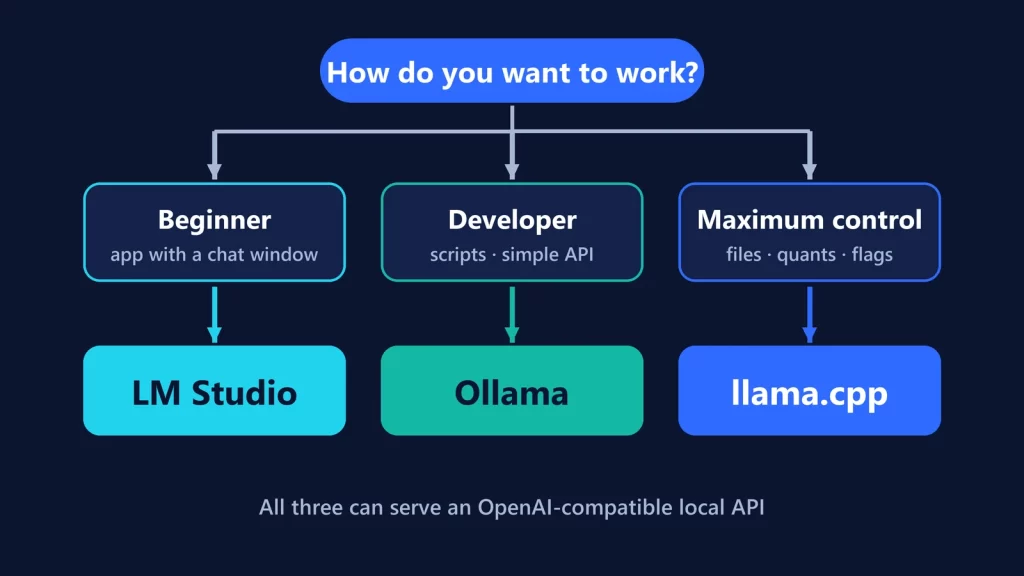
Pick by how you want to work, not by which one is “best.” LM Studio is the easiest if you want a desktop app with a chat window and settings you can see. Ollama is the easiest if you live in a terminal or want local models behind a simple API for your scripts and tools. llama.cpp is for maximum control over the model file, the quantization and exactly how the work is split between your GPU and CPU. All three can expose an OpenAI-compatible local server, so switching later is less painful than it looks.
One note before the details: we haven’t benchmarked these three for this guide, so you won’t find speed or memory figures here. Everything below comes from each project’s own documentation and repository, checked on October 8, 2026.
Choose LM Studio if…
- you want a graphical app: download a model, chat with it, change settings, without a terminal;
- you want to set GPU offload and context size per model from a dialog. LM Studio lets you save those as each model’s defaults;
- you’re on Windows on Arm. LM Studio supports Snapdragon X Elite machines;
- you’d still like an API. LM Studio offers OpenAI-compatible endpoints (
/v1/chat/completions,/v1/responses,/v1/embeddings,/v1/models), an Anthropic-compatible Messages endpoint, its own REST API, and TypeScript and Python SDKs.
Watch for:
- The app isn’t open source. Its terms license it “solely for Your personal and / or internal business purposes,” and the source code is treated as a trade secret. Its command-line tool,
lms, is MIT-licensed. - On Windows x64 it requires a CPU with AVX2, and on Macs it needs Apple Silicon and macOS 14 or newer. Intel Macs aren’t supported.
Choose Ollama if…
- you want two commands to get going:
ollama pull gemma4to download a model andollama run gemma4to chat with it; - you’re building scripts or tools. Ollama runs a local server with its own REST API (
/api/chat,/api/generate,/api/embed,/api/pulland more) onlocalhost:11434, plus an OpenAI-compatible/v1endpoint, so many existing OpenAI clients work by changing the base URL; - you want a curated model library with sensible default tags. The defaults we checked are 4-bit Q4_K_M builds, and
ollama psshows whether a model is loaded on the GPU, the CPU, or both; - you want a permissive license. The project is MIT-licensed.
Watch for:
- Ollama’s OpenAI compatibility covers “a subset” of OpenAI’s API, not all of it.
- Its default context is short on most consumer hardware: 4K tokens below 24 GiB of VRAM. You’ll need to raise it for coding tools or agents, and that costs memory.
- You can import your own GGUF or Safetensors models with a Modelfile, but Ollama “does not quantize GGUF models during import.” You prepare the quantization elsewhere, typically with llama.cpp.
- On Intel Macs it runs on the CPU only.
Choose llama.cpp if…
- you want to choose the exact model file and quantization.
llama-server -hf <repo>:<quant>pulls a specific GGUF from Hugging Face, andllama-quantizelets you make your own; - your hardware is unusual or constrained. llama.cpp lists more than a dozen backends, including CUDA, HIP (AMD), Metal, Vulkan and SYCL (Intel), and supports “CPU+GPU hybrid inference to partially accelerate models larger than the total VRAM capacity”;
- you want a server you configure flag by flag.
llama-serverprovides OpenAI-compatible chat completions, Responses and embeddings routes plus Anthropic Messages compatibility, on port 8080 by default; - you want MIT-licensed code you can build yourself, or prebuilt packages via winget, Homebrew or conda-forge.
Watch for:
llama-serverincludes a simple web UI, but there’s no desktop app or model browser.- You make every decision yourself: which file, which quantization, how many layers on the GPU, what context size. That’s the point, and also the cost.
Side by side
| LM Studio | Ollama | llama.cpp | |
|---|---|---|---|
| Main interface | Desktop app, plus lms CLI |
CLI and background server (desktop app on Windows/macOS) | CLI tools and llama-server with a web UI |
| License | Proprietary app; lms CLI MIT |
MIT | MIT |
| Platforms | macOS 14+ (Apple Silicon), Windows x64 (AVX2) and Arm, Linux x64/Arm64 | macOS 14+ (Apple Silicon GPU; Intel CPU-only), Windows, Linux | Windows, macOS, Linux; build or install packages |
| Getting models | Download in the app; import GGUF with lms import (experimental) |
Ollama library tags; import GGUF or Safetensors via Modelfile | Any GGUF file, or -hf repo:quant from Hugging Face |
| Quantization control | Choose among available builds | Choose among library tags; no quantizing on import | Full: pick any quant or make your own with llama-quantize |
| OpenAI-compatible API | Yes (Chat Completions, Responses, Embeddings, Models) | Yes, a subset at /v1 |
Yes (Chat Completions, Responses, Embeddings) |
| Other APIs | Own REST API, Anthropic-compatible, TS/Python SDKs | Own REST API at /api |
Anthropic Messages-compatible |
| Default local address | Docs’ examples use port 1234 | localhost:11434 |
Port 8080 |
| Headless use | llmster daemon (no GUI) |
Runs as a background service | Server binary |
| GPU split control | Per-model offload setting | Automatic; check with ollama ps |
Manual, flag by flag |
| Best for | GUI users, Windows on Arm | CLI users, scripts and tools | Maximum control, unusual hardware |
GGUF, and why control matters on small machines
All three work with GGUF, the model file format llama.cpp uses, which packs a model at a chosen quantization. On a machine with 16 GB of memory, the quantization and context length you pick decide whether a model is comfortable or barely fits. We worked through that in what AI you can actually run with 16 GB of RAM.
The three tools give you different amounts of say over those choices:
- Ollama picks sensible defaults, so you mostly choose a model tag.
- LM Studio puts the main knobs (GPU offload, context, Flash Attention) in a per-model settings dialog.
- llama.cpp exposes all of it, including making a quantization that nobody publishes.
For most people, the defaults are fine. Control starts to matter when a model sits right at the edge of your memory.
Scripting and automation
For scripts, the OpenAI-compatible endpoints are the common ground. A tool written against the OpenAI client can usually be pointed at any of the three by changing the base URL and model name. Expect differences in which parameters and features each supports, so test your specific calls.
If you only need one local model behind an API, Ollama is the shortest path. If you want SDKs designed for local models, LM Studio has them for TypeScript and Python. If you’re deploying a server with specific flags, use llama-server.
One more Windows note: Microsoft lists LM Studio among the agents that already support its new Execution Containers, which limit what an agent can access on the PC.