
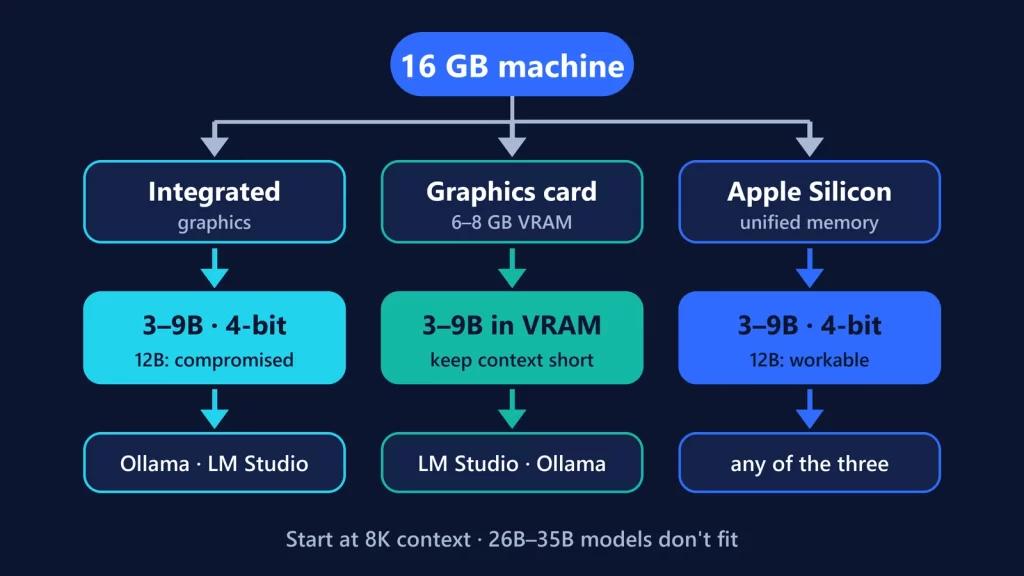
With 16 GB of memory, the realistic sweet spot for local AI in 2026 is a model of roughly 3 to 9 billion parameters at 4-bit quantization: a download of about 2 to 7 GB. Those run on all three common 16 GB setups (a laptop with integrated graphics, a PC with a modest graphics card, or an Apple Silicon Mac). A 12B model can be squeezed in with compromises. The popular 26B to 35B models, including mixture-of-experts ones with only 3 billion “active” parameters, don’t fit at the default 4-bit quantization.
The size of the download is only half the answer, though. How much conversation the model has to keep in memory decides whether a model that fits is actually pleasant to use, and that differs a lot between models of the same size.
Which “16 GB” do you have?
- 16 GB of system RAM with integrated graphics (most laptops and many desktops). The model usually runs from system RAM, which Windows, your browser and every open app are also using. Some integrated GPUs can help: Ollama’s hardware support page, for example, lists AMD’s Ryzen AI chips. Run
ollama pswhile a model is loaded and the PROCESSOR column shows whether it’s on the CPU, the GPU, or split between them. - 16 GB of RAM plus a graphics card with its own memory (VRAM), typically 6 to 8 GB on mainstream cards. The model is fastest when it fits entirely in VRAM. If it doesn’t, runtimes like llama.cpp and Ollama split it between the GPU and the CPU. llama.cpp calls this “CPU+GPU hybrid inference,” and Ollama’s own advice is to “avoid offloading the model to CPU” for best performance.
- An Apple Silicon Mac with 16 GB of unified memory. The CPU and GPU share one pool, but macOS doesn’t let the GPU use all of it without a performance cost. Apple’s Metal API exposes a recommended max working set size, described as an approximation of how much memory the GPU can allocate “without affecting its runtime performance.” On one 16 GB M1 MacBook Pro, llama.cpp-based software logged that value as 10,922.67 MB, about two thirds of the total. Treat it as a ballpark; the value comes from macOS and may vary.
Where the memory goes
Four things share the budget:
- Model weights. Set by the parameter count and the quantization. llama.cpp’s quantization documentation lists its common 4-bit format, Q4_K_M, at about 4.9 bits per weight. An 8-billion-parameter Llama 3.1 comes out at 4.58 GiB, against 14.96 GiB at full 16-bit precision.
- The KV cache. The model’s working memory for the current conversation. It grows with every token of context.
- Extras. Vision models ship a separate image encoder. Qwen3.5 9B’s adds 456 million parameters, kept at 16-bit.
- Runtime overhead. Compute buffers and the app itself. They’re small next to the weights, but they’re not zero.
Why “it fits” doesn’t mean “it’s usable”
The KV cache is where similar-looking models part ways. Its size per token depends on the model’s architecture, which is published in each model’s configuration file (Granite 4.2 8B, Qwen3.5 9B, LFM2.5 8B-A1B). Here’s what the official configs work out to, using a 16-bit cache, the default in Ollama:
| Model | Why | KV cache per token | At 8K context | At 32K context |
|---|---|---|---|---|
| Granite 4.2 8B | All 40 layers use full attention | 160 KiB | 1.25 GiB | 5 GiB |
| Qwen3.5 9B | Only 8 of 32 layers use full attention | 32 KiB | 0.25 GiB | 1 GiB |
| LFM2.5 8B-A1B | Only 6 of 24 layers use attention | 12 KiB | 0.09 GiB | 0.38 GiB |
Calculated as 2 (keys and values) × attention layers × KV heads × head size × 2 bytes, from the models’ published config files. Layers that don’t use full attention keep a fixed-size state instead. Runtime overhead isn’t included.
So two models with nearly identical language-model weights, about 5.3 and 5.6 GB, need roughly 6.6 and 5.9 GB at an 8K context, but about 10.3 and 6.6 GB at 32K. On a Mac’s roughly 10.7 GB GPU budget or an 8 GB graphics card, that’s the difference between comfortable and not fitting.
Two settings make it worse without you noticing:
- Context length. Ollama sets a 4K context by default on machines with less than 24 GiB of VRAM, but recommends at least 64,000 tokens for “web search, agents, and coding tools.” At 64K, the Granite figures above become 10 GiB of cache on their own.
- Parallel requests. Ollama’s FAQ notes that required memory scales with the number of parallel requests times the context length.
There’s one lever in the other direction. With Flash Attention on, Ollama can store the cache at 8-bit, which it says uses “approximately 1/2 the memory of f16” with “a very small loss in precision.” It can also store it at 4-bit, with a larger loss. Set it with the OLLAMA_KV_CACHE_TYPE environment variable.
What runs on 16 GB: the matrix
Sizes are the default 4-bit (Q4_K_M) builds in the Ollama library, checked on October 8, 2026. KV figures use the calculation above; “n/c” means we didn’t calculate it because the architecture details needed aren’t fully specified in the config.
| Model (Ollama tag) | Weights at Q4_K_M | Max context | Integrated graphics | 8 GB graphics card | Apple Silicon 16 GB |
|---|---|---|---|---|---|
Granite 4.2 3B (granite4.2:3b) |
2.2 GB | 128K | Comfortable | Comfortable | Comfortable |
Qwen3.5 4B (qwen3.5:4b) |
2.6 GB + 0.7 GB vision | 256K | Comfortable | Comfortable | Comfortable |
Gemma 4 E2B (gemma4:e2b) |
3.5 GB + vision | 128K | Comfortable | Comfortable | Comfortable |
LFM2.5 8B-A1B (lfm2.5) |
5.2 GB | 125K | Workable | Workable | Workable |
Gemma 4 E4B (gemma4:e4b) |
5.5 GB + vision | 128K | Workable | Workable | Workable |
Qwen3.5 9B (qwen3.5:9b) |
5.6 GB + 0.9 GB vision | 256K | Workable | Workable (short to mid context) | Workable |
Granite 4.2 8B (granite4.2:8b) |
5.3 GB | 128K | Workable at 8K, compromised at 32K | Workable at 8K, offloads at 32K | Workable at 8K, tight at 32K |
Gemma 4 12B (gemma4:12b) |
7.4 GB + vision | 256K | Slow/compromised | Compromised (partial offload) | Workable, little headroom |
| 26B–35B class: Gemma 4 26B, Qwen3.6 27B, Qwen3.5 35B-A3B, Nemotron 3.5 Lightning 30B-A3B | 16–25 GB | n/a | Unrealistic | Unrealistic | Unrealistic |
How we classed them:
- Comfortable: weights plus an 8K cache use under half the budget.
- Workable: fits at a useful context with room to spare.
- Compromised: fits only with a short context, CPU offloading, or almost no headroom.
- Unrealistic: the 4-bit weights alone exceed the budget.
The budgets are the GPU’s VRAM; about 10.7 GB on a Mac (see above); and, for integrated graphics, what’s left after Windows and your apps. Check that last figure in Task Manager under Performance > Memory before you pick a model.
These classes are about memory, not speed. We haven’t run benchmarks for this guide, so there are no tokens-per-second figures here.
The “3B active” trap
Mixture-of-experts models advertise small “active” parameter counts. Nemotron 3.5 Lightning, for example, is described as a 30B model with 3B active parameters. Activating fewer parameters reduces the computation per token, but all the experts still have to be loaded: its default 4-bit download is 25 GB, and Qwen3.5’s 35B-A3B is 22 GB. The MoE that does make sense on 16 GB is the small one: LFM2.5 8B-A1B, whose config activates 4 of 32 experts per token, downloads at 5.2 GB, and has a cache small enough to allow long contexts.
Which app to use
- Integrated graphics: Ollama or LM Studio. On Windows, LM Studio requires a CPU with AVX2, and recommends at least 16 GB of RAM.
- Graphics card with 6 to 8 GB of VRAM: LM Studio, if you want to set GPU offload and context size per model from a settings dialog. Ollama, if you prefer it to place the model automatically and check the split with
ollama ps. llama.cpp lets you set the GPU/CPU split yourself. - Apple Silicon: any of the three. llama.cpp calls Apple Silicon “a first-class citizen,” and LM Studio supports M1 through M4 Macs on macOS 14 or newer.
Whatever you use, start at 8K context, check the memory the model actually takes, then raise the context only if you need it.
If privacy is your reason for looking at local AI, it’s worth knowing what cloud assistants keep. We’ve covered what Google still saves when Gemini’s Keep Activity is off.