
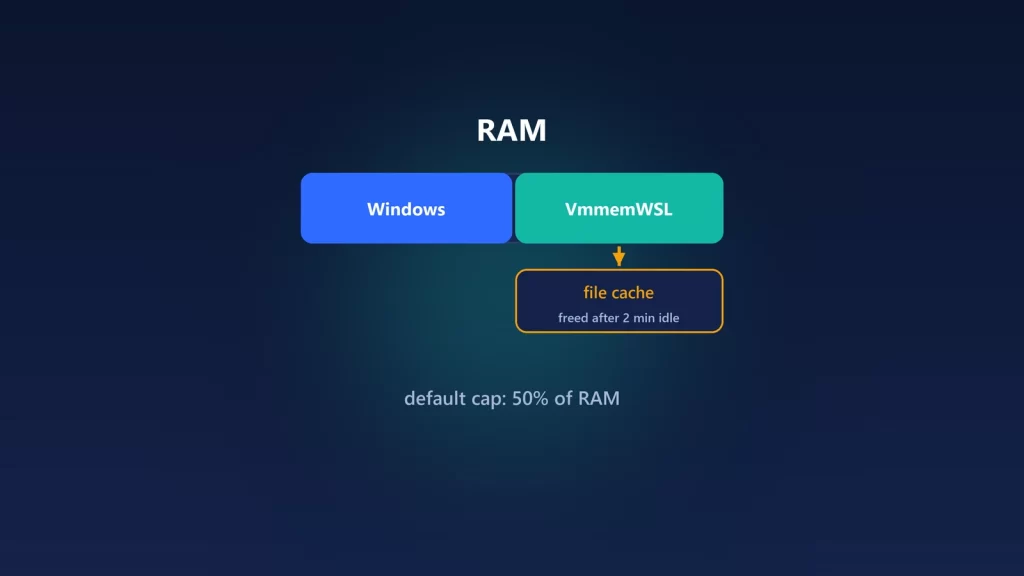
If VmmemWSL is taking gigabytes in Task Manager, that’s the WSL 2 virtual machine. By default it can grow to half of your PC’s RAM. Linux uses free memory as file cache, so the VM looks full long after your work is done. To cap it, set memory= in .wslconfig and restart WSL. To get cache back sooner, update WSL: in WSL 3.0, idle cache is released after about two minutes, instead of the roughly ten minutes older versions waited. Several popular guides give the wrong defaults. These are the real ones, from Microsoft’s documentation and WSL’s source code.
The real defaults
| Setting | Default | Where it’s set |
|---|---|---|
memory |
50% of total RAM. A value you set is kept between 256 MB and your total RAM | [wsl2] in .wslconfig |
swap |
25% of the VM’s memory, rounded up to the next GB | [wsl2] |
processors |
All logical processors | [wsl2] |
autoMemoryReclaim |
dropCache |
[experimental] |
vmIdleTimeout |
60,000 ms: the VM shuts down a minute after it goes idle | [wsl2] |
These come from Microsoft’s WSL configuration reference, updated October 16, 2026, and match WSL’s configuration code. The code also shows that machine-wide policies set by an organization override your own .wslconfig.
You’ll still find guides saying the default is 80% of RAM, or 8 GB at most. Neither matches current documentation or code. Others tell you to switch autoMemoryReclaim to dropCache as a fix, but that’s been the default since WSL 2.1.3 in February 2024.
Why the VM looks full when nothing is running
Linux keeps recently read files in memory as cache, because unused RAM is wasted RAM. Inside a normal Linux PC that’s harmless. In WSL, that cache sits inside a virtual machine, and Windows sees all of it as memory the VM is using. A large build, a git clone or a container image pull can leave gigabytes of cache behind.
WSL’s reclaim feature hands that cache back when the VM is idle. Microsoft’s WSL team rewrote it this summer, in pull request 41096, merged July 24, 2026. They wrote that the old version “waits approximately ten minutes before dropping cache,” which “leaves vmmemWSL elevated long after real workloads finish.” The new version starts after two minutes of sustained idle. In the team’s own tests, it reached the same final memory footprint roughly seven minutes sooner. The change first shipped in the 2.9.8 preview and is part of WSL 3.0.
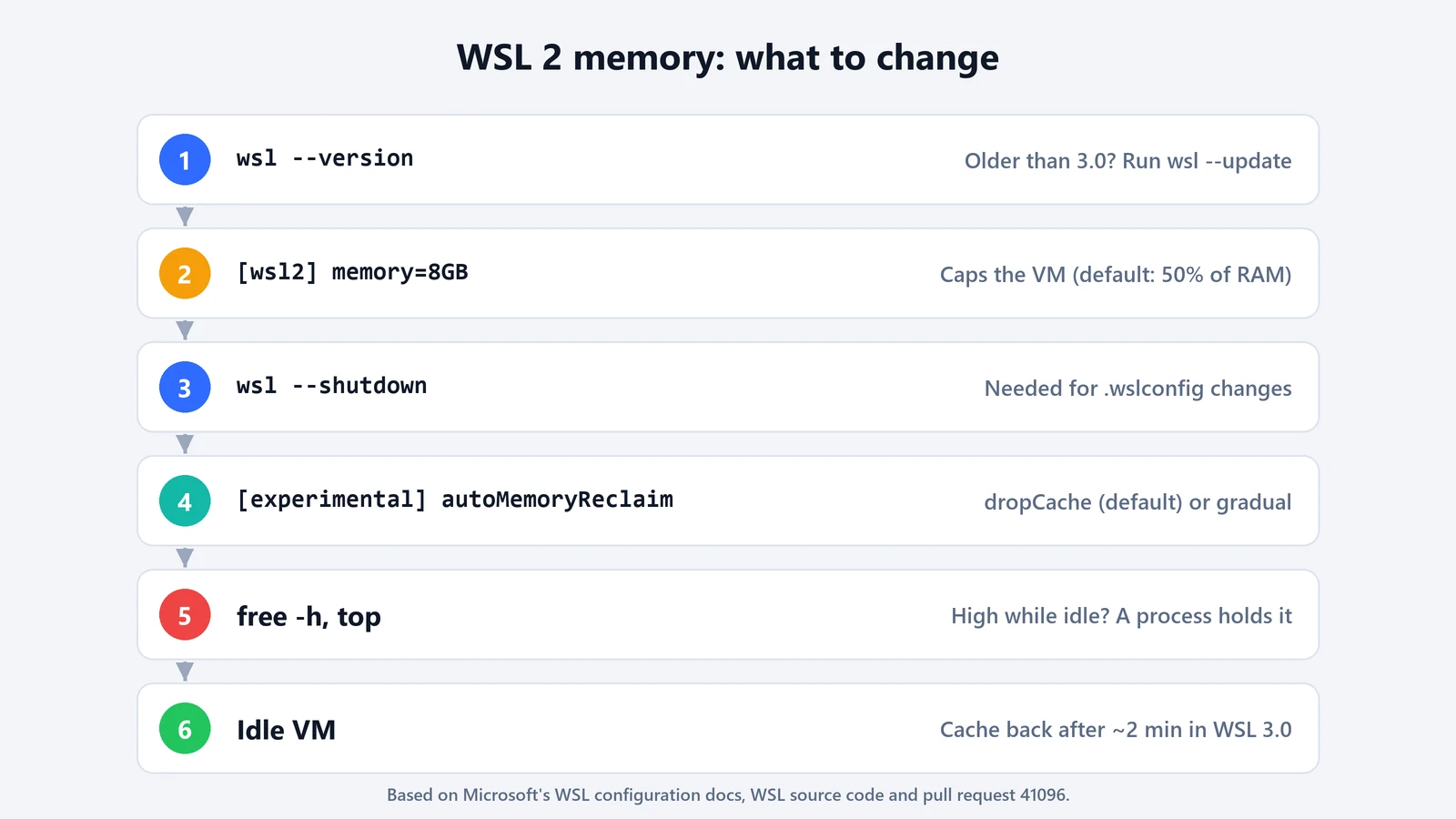
Step 1: check your WSL version
In PowerShell, run:
wsl --versionIf it’s older than 3.0, run wsl --update. That alone may fix “memory never comes back.”
Step 2: cap the memory if you need to
Create or edit .wslconfig in your Windows user folder (%UserProfile%\.wslconfig, not inside Linux) and set a limit:
[wsl2]
memory=8GB
swap=4GB
Then shut WSL down so the setting takes effect. Microsoft notes that this stops every running distribution:
wsl --shutdownA cap limits the worst case, but it doesn’t make the VM give memory back faster. If you set 8 GB and fill it with cache, it can stay near 8 GB until reclaim runs. Choose a cap that fits your real workloads. Builds that run out of memory under a low cap fail in confusing ways, and swap then makes them slow rather than failing cleanly.
Step 3: choose how cache is reclaimed
The reclaim mode goes in a separate section:
[experimental]
autoMemoryReclaim=gradual
The pull request describes the three modes, each kicking in after two minutes idle:
- dropCache (default) drops the file cache once per idle period.
- gradual keeps reclaiming cold cache toward a 128 MB floor in steps, so it reaches a lower footprint if cache keeps growing back. It avoids swapping your programs’ memory to do it, and falls back to
dropCacheif the kernel feature it needs isn’t available. - disabled turns reclaim off.
Microsoft’s tests in the pull request found gradual brought vmmemWSL from 3.23 GiB to 1.63 GiB within about 150 seconds, while files reread after a short pause stayed just as fast. If your machine is short on RAM, gradual is worth trying. If you work with the same large files over and over, the default keeps more of them cached.
When it isn’t cache
If memory stays high while the VM is genuinely idle, something inside Linux is still running. Check with free -h and top inside your distribution. Common culprits are a forgotten dev server, a database or container, or a language server your editor left behind. Reclaim only frees cache, not memory that a running program holds. With the default vmIdleTimeout, the whole VM shuts down shortly after the last distribution stops, and that frees everything.
If you run AI coding tools inside WSL 2, for example the setup in our guide to Claude Code’s sandbox on Windows, the same rules apply. Their builds and test runs count against the VM’s memory, not against Windows directly.