
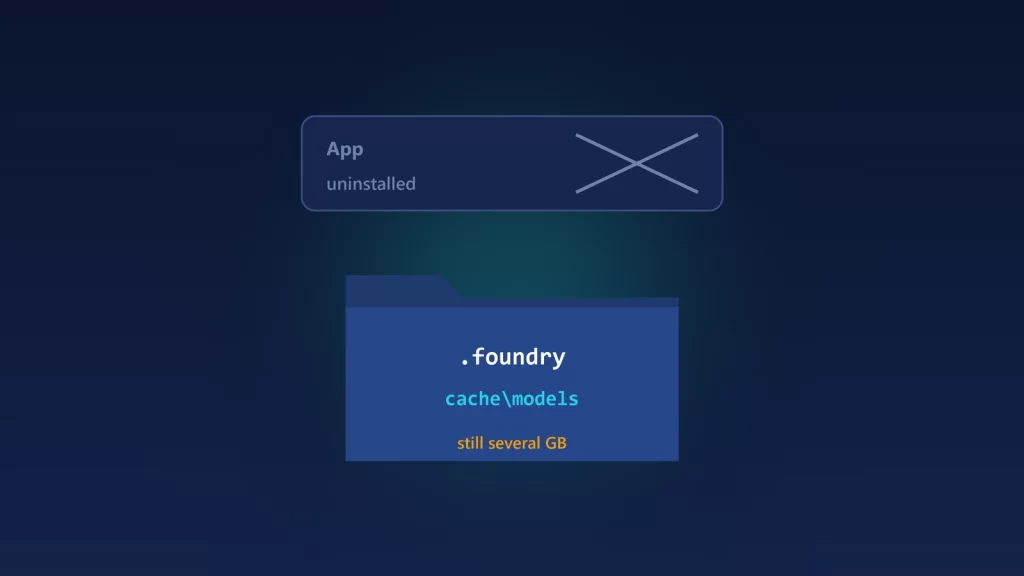
Uninstalling Foundry Local, or an app built on it, doesn’t delete the AI models it downloaded. They sit in a model cache in your user profile, often several gigabytes per model, and no Windows uninstaller removes them. That covers MSIX, MSI and custom setup programs alike. Before you uninstall, run foundry cache location to see where the cache is, foundry cache list to see what’s in it, and foundry cache remove to delete models. If an app that embedded Foundry Local is already gone, its cache is probably a folder named after the app, starting with a dot, in your user folder. Here’s how to find and clear both kinds safely.
Why uninstalling doesn’t free the space
The cache is created when Foundry Local runs, not when it’s installed, and Windows installers don’t remove data created at run time. A developer laid this out in Foundry Local’s issue tracker, with a table that comes down to:
- Windows Installer (MSI) removes what it installed and deliberately leaves user data.
- Custom setup programs remove only what their authors wrote code to remove.
- MSIX removes the package and its own app data, but the model cache lives outside the package, and MSIX packages can’t run cleanup code at uninstall.
The same report notes that the folder doesn’t show up as belonging to any app. Settings > Apps can’t link it to anything, Settings > Storage lumps it in with ordinary user files, and Storage Sense and Disk Cleanup don’t touch dot-folders in your profile. In its reply, the Foundry Local team didn’t dispute this. It pointed to the SDK’s supported functions for listing, measuring, moving and removing cached models, and acknowledged that they “weren’t easy to find.”
Two kinds of cache
Where the models are depends on what downloaded them:
- The Foundry Local CLI, the
foundrycommand, keeps its own cache. Plugable’s support article gives the default asC:\Users\<username>\. Rather than rely on that, ask the CLI, as shown below..foundry\ cache\ models - Apps that embed the Foundry Local SDK each get their own cache by default. The SDK’s configuration reference sets the app data folder to
{home}/.{appname}and the model cache to acache/modelsfolder inside it. So an app named MyApp stores models in%USERPROFILE%\, unless its developer chose another location..MyApp\ cache\ models
That second point means two apps can each download their own copy of the same model, and neither copy disappears when you uninstall them.
Clear the CLI cache with supported commands
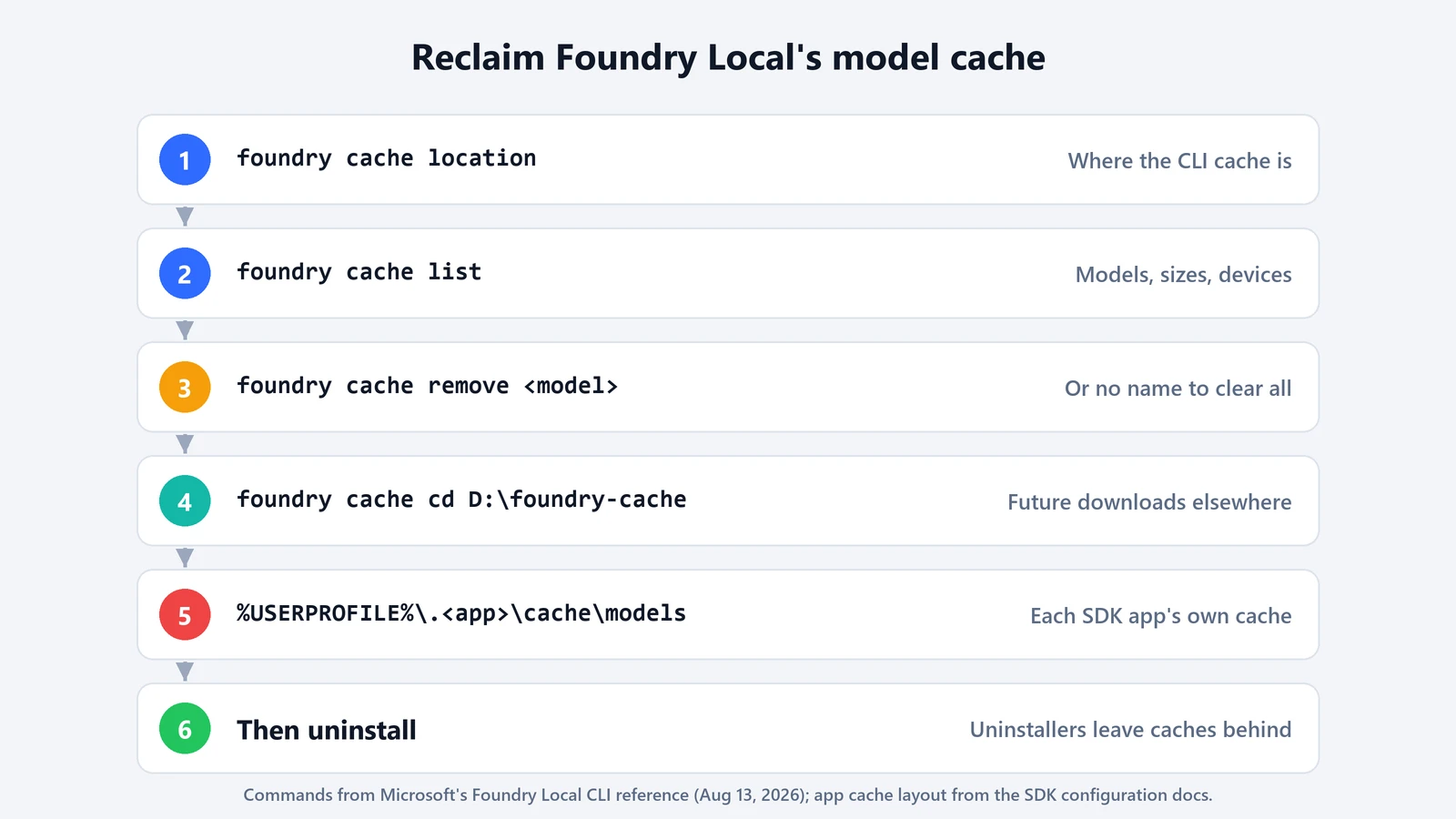
These are the cache commands in Microsoft’s Foundry Local CLI reference, last updated August 13, 2026. The CLI is still in preview, and its commands have changed between versions, so run foundry cache --help first to confirm them on yours.
- Find the cache.
foundry cache location - See what’s there. The list shows each cached model with its size and device.
foundry cache list - Remove what you don’t need. Remove one model by name, or leave the name out to remove every cached model after a confirmation prompt:
foundry cache remove phi-4-mini
foundry cache remove
Add
--forceto skip the confirmation. - Check the result. Run
foundry cache listagain, then check the free space on the drive.
Do this before you uninstall the CLI, while the foundry command still exists. If you’ve already uninstalled it, reinstalling it, clearing the cache and uninstalling again is the cleanest supported route.
Move future downloads to another drive
To keep models off your system drive, point the CLI at a different folder:
foundry cache cd D:\foundry-cacheMicrosoft’s reference describes this as changing the cache directory. It doesn’t say whether models already downloaded are moved with it. Run foundry cache location and foundry cache list afterwards to see what the CLI now finds. Clear the old cache first if you don’t want two copies. External drives work, since Plugable documents exactly that setup, but the drive has to be connected whenever you use the models.
For apps built on the SDK, the location is up to the developer. The SDK lets an app set its own model folder, and the Foundry Local team recommended that packaged apps keep it inside the app’s package storage, so Windows removes it at uninstall. If an app you use fills your system drive, that’s worth asking its developer about.
An app is already uninstalled and its cache is still there
The CLI only manages its own cache, not an app’s. If the app is gone, check your user folder (%USERPROFILE%) for a dot-folder with the app’s name that contains cache\, the SDK’s default layout. Before you delete anything, make sure:
- the folder matches that layout, and the files inside are model files rather than documents;
- the app really is uninstalled, and no other app shares the folder;
- you delete only the
cache\folder if you’re unsure about the rest, since logs and settings live next to it.models
Deleting a cache only costs a re-download if you install the app again.
If you’re still deciding whether Foundry Local is the right tool, our comparison of the Windows AI APIs, Foundry Local and Windows ML covers who ships the model in each case. And if your models are on disk but running on the wrong chip, here’s how to diagnose missing NPU models.