
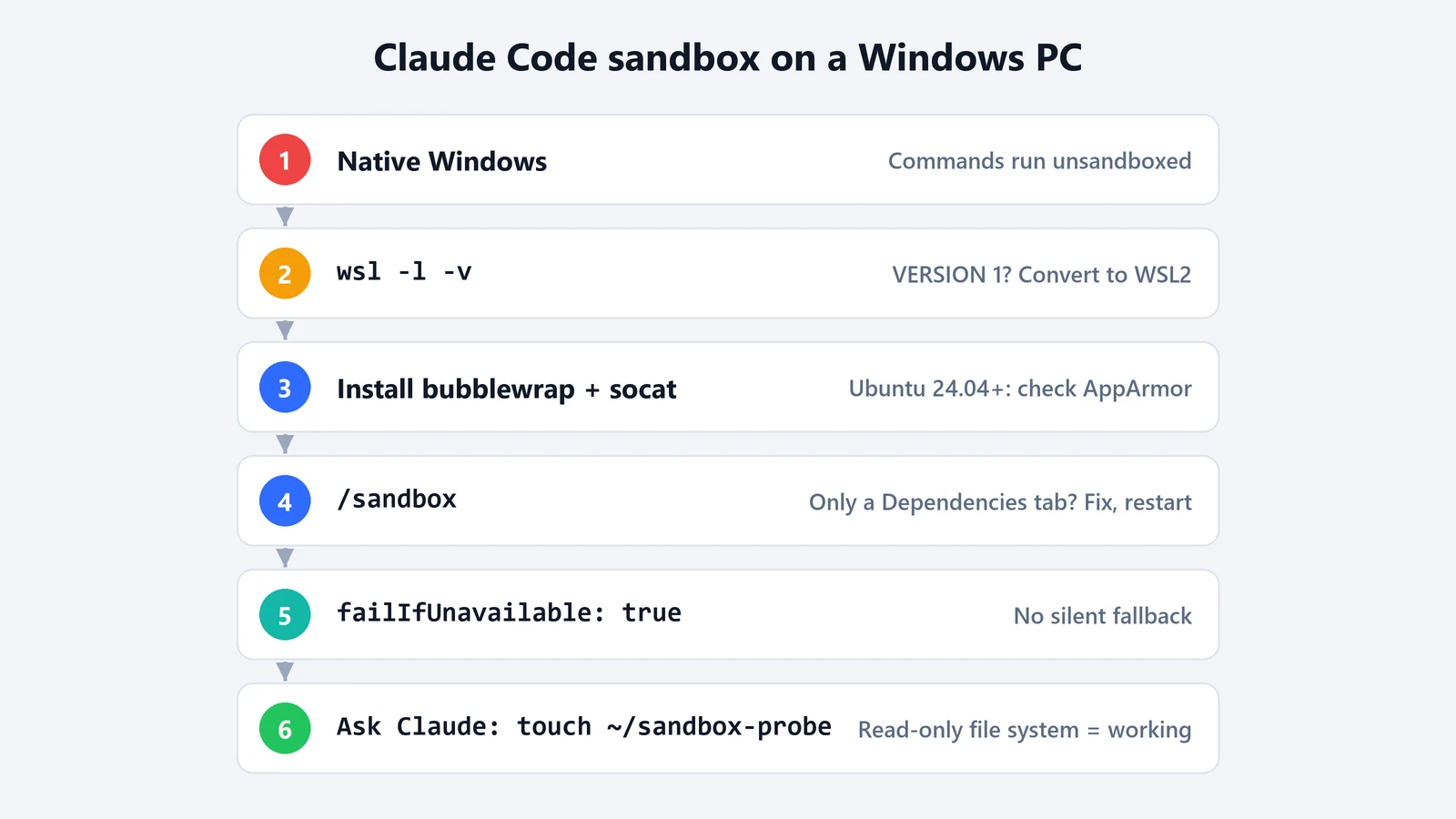
Claude Code’s sandbox doesn’t run on native Windows. Anthropic’s sandboxing documentation says it plainly: “On native Windows, Claude Code runs commands unsandboxed.” If you want the shell commands Claude runs to be fenced in, run Claude Code inside a WSL2 Linux distribution, install two packages, and turn the sandbox on with /sandbox. The catch is that Claude Code doesn’t stop you if the sandbox can’t start. By default it carries on without one. This guide covers the setup, the errors you’re likely to hit on Windows, and how to prove the sandbox is really on.
What the sandbox does, and why “it runs” isn’t enough
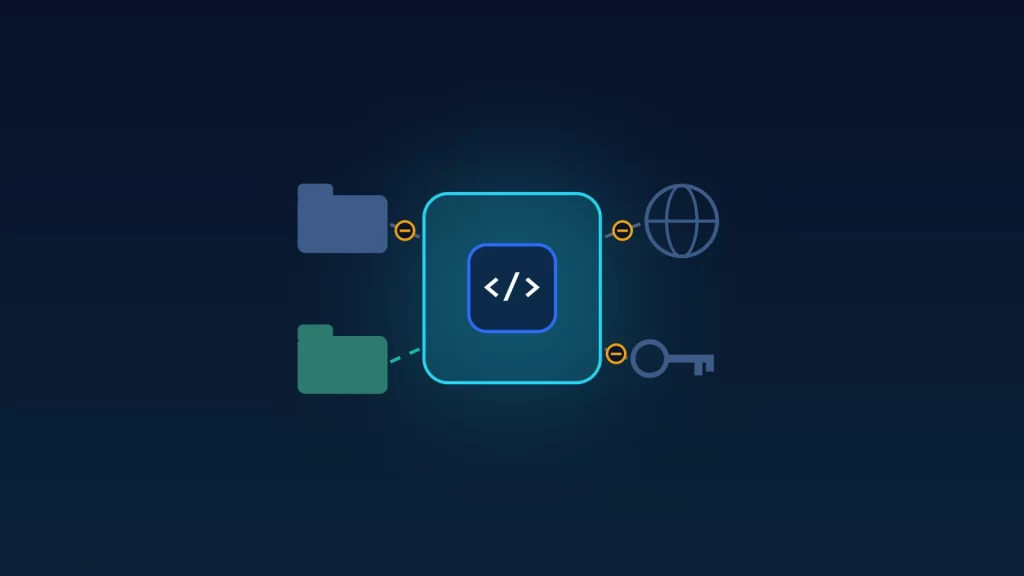
The sandbox is a boundary that the operating system enforces around the commands Claude runs: Bash, PowerShell and Monitor commands, plus anything they start. By default, those commands can write only to your working directory, a temporary folder and folders you’ve added. They have no direct network access: traffic goes through a local proxy that only lets through the domains you allow. In return, Claude can run commands inside that boundary without asking you each time. In Anthropic’s engineering write-up, the company says that in its own use, sandboxing cut permission prompts by 84%.
It’s off by default everywhere. And here’s the trap on Windows. Per the docs, if the sandbox can’t start because a dependency is missing or the platform isn’t supported, Claude Code runs commands without it. So you can follow a guide, see no error, and still have nothing between Claude’s commands and your files. If that’s a gap you care about, our piece on why sandboxing a coding agent matters explains what it protects against, and GitSpawn is a recent example of a repository that could run code as soon as an agent opened it.
Step 1: make sure you’re on WSL2
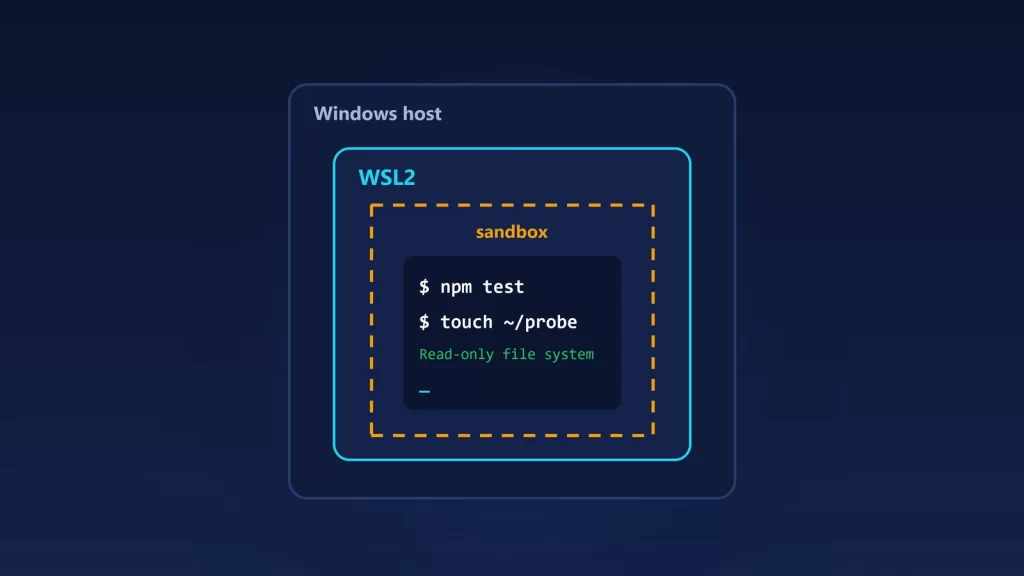
The sandbox works on macOS, Linux and WSL2, and on WSL2 it uses bubblewrap, the same tool as on Linux. WSL1 doesn’t work. In PowerShell, run:
wsl -l -vThe VERSION column should say 2 for the distribution you’ll use. If it says 1, Microsoft’s WSL command reference shows how to convert it. Back up first, since the conversion rewrites the distribution:
wsl --set-version <distribution name> 2Then install and run Claude Code inside the distribution, not in Windows. If you launch it from PowerShell or Git Bash, you’re back to unsandboxed commands. Inside WSL2, ~ means your Linux home folder, so the ~/.claude settings mentioned below are the Linux copies, not the ones in your Windows user profile.
Step 2: install bubblewrap and socat
Inside WSL2, the sandbox needs bubblewrap, which isolates the filesystem, and socat, which relays network traffic through the sandbox proxy. On Ubuntu or Debian:
sudo apt-get install bubblewrap socatOn Fedora, use sudo dnf install bubblewrap socat. Ripgrep comes bundled with Claude Code. A seccomp filter is optional: it blocks Unix domain sockets, and that matters on WSL2, as Step 5 explains. If /sandbox reports it missing, the docs say to install it with npm install -g @anthropic-ai/sandbox-runtime.
Ubuntu 24.04 and later: one more step
On Ubuntu 24.04 and later, AppArmor stops bubblewrap from creating the user namespaces it needs, inside WSL2 too. Check with:
sysctl kernel.apparmor_restrict_unprivileged_usernsIf it prints 0, or says the key doesn’t exist, skip this. If it prints 1, the docs give an AppArmor profile that lets /usr/bin/bwrap do this, saved as /etc/apparmor.d/bwrap, followed by sudo systemctl reload apparmor. Copy the profile from the official page rather than from a blog post. It applies to bwrap itself, not to the commands that run inside the sandbox.
Step 3: turn it on, and make failure loud
Start Claude Code in your project and run /sandbox. If the panel shows only a Dependencies tab, something required is missing: install it, restart Claude Code, and run /sandbox again. Once the dependencies are there, pick a mode. With auto-allow, commands that run inside the sandbox don’t need your approval. Commands that fall outside it still go through the normal permission prompts.
The panel saves your choice to .claude/settings.local.json for that project. To use the sandbox in every project, set sandbox.enabled to true in ~/.claude/settings.json. We’d add two more settings:
{
  "sandbox": {
    "enabled": true,
    "failIfUnavailable": true,
    "allowUnsandboxedCommands": false
  }
}
failIfUnavailable makes Claude Code exit at startup if the sandbox can’t start, instead of quietly running without one. allowUnsandboxedCommands: false turns off the escape hatch where Claude asks to retry a failing command outside the sandbox. Leave the hatch on if your tools often break in the sandbox and you’d rather approve those cases one at a time.
Step 4: prove it’s working
The docs give two probes. Ask Claude to run these: commands you type yourself at the ! prompt usually run outside the sandbox, so they don’t test anything.
| Ask Claude to run | Expected inside the sandbox on WSL2 |
|---|---|
touch ~/sandbox-probe |
Fails with Read-only file system |
curl --noproxy '*' https://example.com |
Fails with Could not resolve host |
If Claude offers to retry outside the sandbox, say no. If touch succeeds, the sandbox isn’t active. Delete the probe file and go back to /sandbox.
Step 5: fix the errors Windows users hit
- “Sandboxing requires WSL2”. Your distribution is on WSL1. Convert it as in Step 1, or run without the sandbox, knowing what that means.
- Windows programs launch from inside the sandbox, or won’t. On WSL2, starting a Windows program such as
cmd.exe,powershell.exeor anything under/mnt/c/is passed to Windows over a Unix socket. So whether a sandboxed command can do it depends on the sandbox’s socket rules. To block it, the optional seccomp filter must be installed. To allow it, the docs offerallowAllUnixSockets, which opens every Unix socket to sandboxed commands. That’s a broad setting, so only use it if you need Windows tools in the loop. - A tool needs to write outside the project. Add the path to
sandbox.filesystem.allowWrite, for example"~/.kube", rather than taking the whole tool out of the sandbox. - docker commands fail. The docs say docker is incompatible with the sandbox. Exclude only the commands you need, such as
"excludedCommands": ["docker compose *"]. Excluded commands run with your full access, so keep the pattern narrow. - A command can’t reach a host. Approve the domain when prompted, or add it to
sandbox.network.allowedDomains. - Running inside a container in WSL. bubblewrap may fail with Can’t mount proc. The docs’ fix,
enableWeakerNestedSandbox, weakens the sandbox, so only use it when the outer container already isolates things for you.
What the sandbox doesn’t cover
The sandbox wraps shell commands. Claude Code’s built-in tools, such as Read, Edit, Write and WebFetch, follow your permission rules instead. A denyRead rule doesn’t stop the Read tool, and allowedDomains doesn’t limit WebFetch. Hooks, local MCP servers and similar helpers run with your full access. And by default, sandboxed commands can still read most of the machine, including credential files like ~/.ssh, and they inherit Claude Code’s environment variables, secrets included. The docs have a section on protecting credentials for that. Inside WSL2, that’s the Linux side, but /mnt/c is your Windows drive. If you don’t want commands reading it, add it to sandbox.filesystem.denyRead.
If your work has to stay on native Windows, the sandbox isn’t an option there today, so treat permission prompts as your boundary and keep auto-approval rules tight. Other tools have taken a different route: GitHub Copilot CLI’s local sandbox supports Windows 11, as we noted when we compared agent sandboxes.