
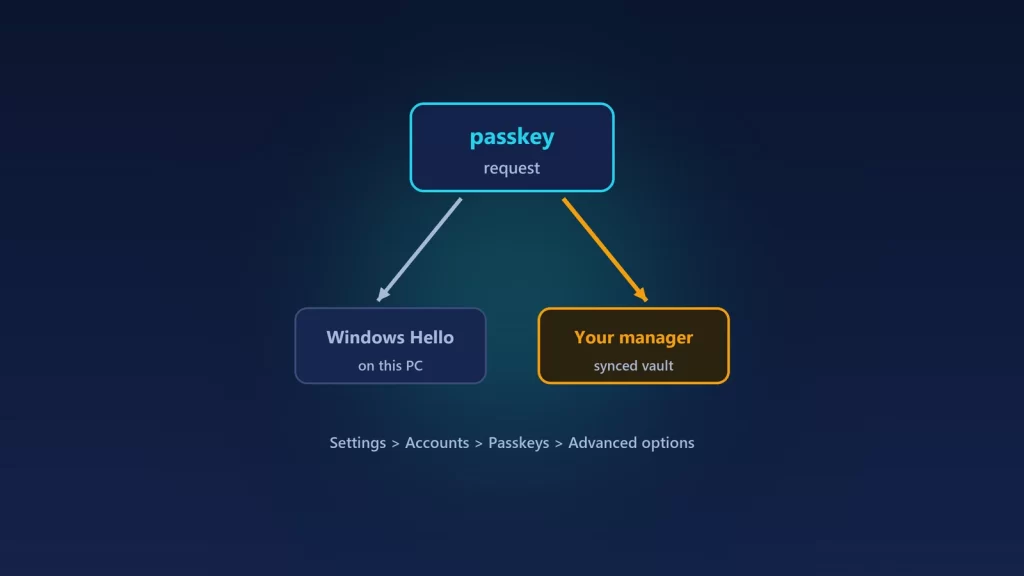
Windows 11 can now save and use passkeys with a third-party password manager such as 1Password, not just Windows Hello. But the manager has to be switched on in Windows itself, under Settings > Accounts > Passkeys > Advanced options. For 1Password, you also need the MSIX version of the app. If passkeys still go to Windows Hello, or the manager never appears in the list, one of those two things is usually missing. Even when it works, you’ll often see a Windows Security prompt before your manager’s own window, and that’s by design. Here’s how the pieces fit, and how to check each one.
Two different routes for passkeys
The confusion usually comes from mixing up two separate integrations:
- The browser extension. Your password manager’s extension handles passkeys inside the browser, as it has for a while. This works without any Windows setting.
- The Windows passkey provider. New in Windows 11, this lets a manager plug into Windows’ own passkey system. It’s what desktop apps and other software use when they ask Windows for a passkey. 1Password put it in a single line on launch day: “No browser, no problem.”
So a passkey can work in Chrome through the extension and still fail in a desktop app, if the Windows-level provider isn’t set up. The reverse happens too.
Step 1: turn the manager on in Windows
Microsoft’s passkey management page puts the controls here:
- Open Settings > Accounts > Passkeys.
- Select Advanced options.
- Turn on your password manager. To stop Windows from saving passkeys locally, turn off Save passkeys to this Windows device.
Microsoft’s developer guide to the plugin model adds that turning a provider on asks for Windows Hello verification. Microsoft also notes the setting “may be disabled by your organization IT Admin.” On a work PC, a missing or greyed-out option may simply be policy.
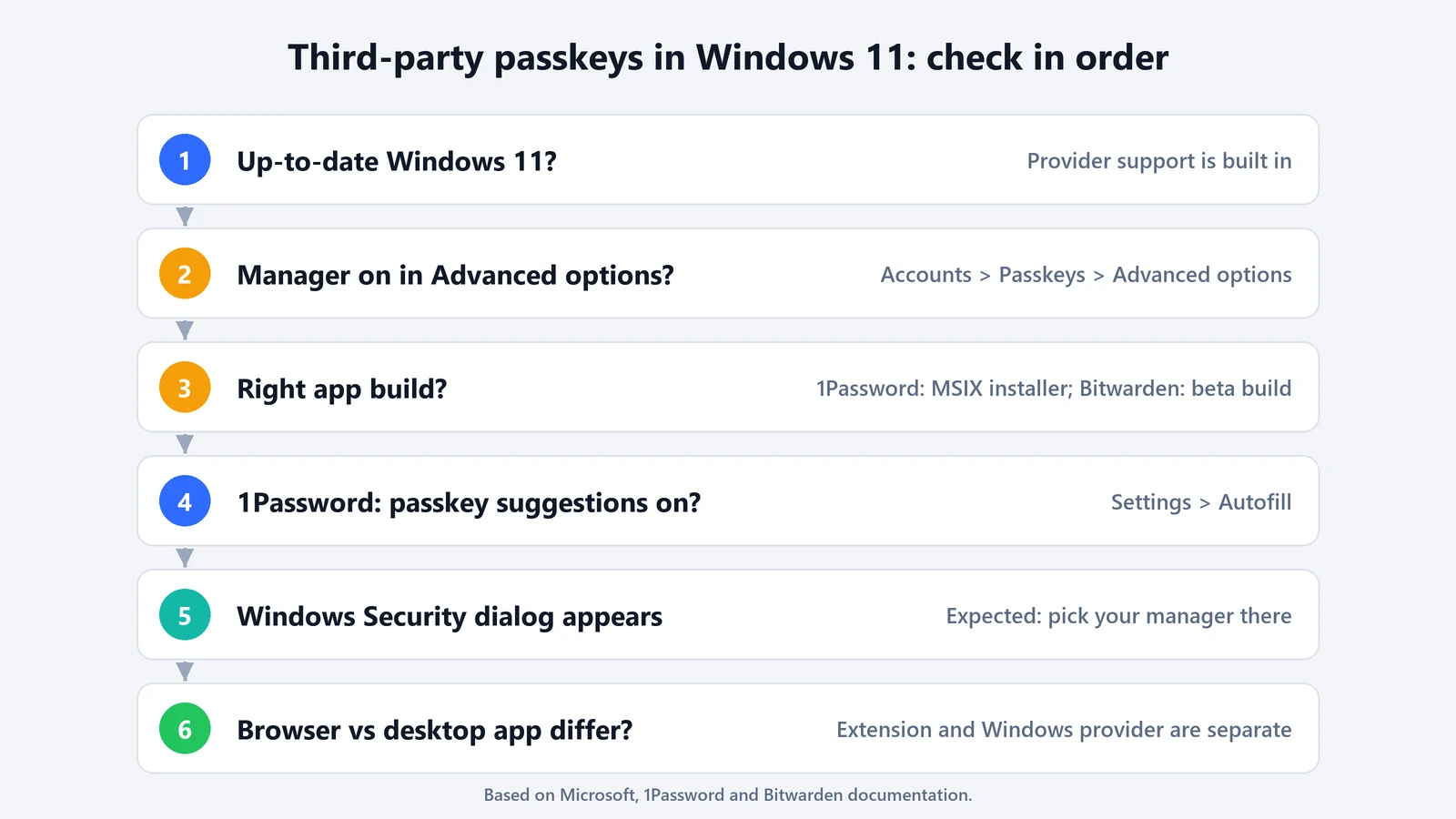
If your manager isn’t in the list at all, the app hasn’t registered as a provider. Usually that’s a version or installer problem, so go to Step 2.
Step 2: check the app version and installer
1Password
According to 1Password’s Windows passkey guide, you need:
- an up-to-date version of Windows 11;
- 1Password for Windows installed with the MSIX installer.
Then, in the 1Password app, go to Settings > Autofill, turn on Show passkey suggestions, and switch 1Password on in the Windows settings above. 1Password made this generally available on November 11, 2025, after six months in beta. The announcement says the integration requires the MSIX build because it uses MSIX “to better support all the functionality Windows 11 offers,” and that 1Password was migrating existing users to that build. If you installed 1Password some other way and see no passkey option, check which installer you used.
Bitwarden
Bitwarden’s announcement describes Windows passkey support in its desktop app as a beta that, for now, requires installing the desktop app from Bitwarden’s GitHub repository rather than the standard installer. Check Bitwarden’s release notes for your version before expecting it to show up in Windows settings.
Step 3: understand the Windows Security prompt
When an app or site asks for a passkey, Windows shows its own dialog first and lets you pick where the passkey lives. Your manager’s window comes after that, and Windows Hello may verify you along the way. Microsoft’s developer guide describes this flow for its demo provider: you choose the provider, then complete Windows Hello verification. Users in Bitwarden’s community forum noticed the same Windows Security step before the manager’s own prompt while the feature was in preview.
That prompt isn’t a sign that Windows ignored your choice. It only becomes a problem when the manager never appears in it.
When it still doesn’t work
- The passkey goes to Windows Hello instead of your manager. Your manager is off in Advanced options, or the “Save passkeys to this Windows device” option is the one offered. Pick your manager in the Windows dialog, or turn local saving off.
- A desktop app fails, but the browser works. The browser is using your manager’s extension, while the app relies on the Windows provider. Recheck Steps 1 and 2.
- Firefox behaves differently from Chrome or Edge. In December 2025, a user in Bitwarden’s community forum reported that the Bitwarden passkey popup never opened in Firefox on Windows 11. The reply recommended updating the extension to version 2025.11.2. If you hit this, try a Chromium-based browser to see whether the problem is the browser or the manager.
- You deleted a passkey in your manager, but the site still lists it. 1Password warns that deleting a passkey in the app “won’t be removed from your account on the website.” Remove it in the site’s security settings too.
One more thing to know before you commit: passkeys saved locally in Windows stay on that PC, while a manager like 1Password syncs them to your other devices. Microsoft’s page also notes that passkeys for a Microsoft account can be managed from the account’s own security page, separately from Windows.
Passkeys are still the strongest everyday sign-in option against phishing. Attackers have adapted, though, by targeting the moment you set one up, as we described in how passkey setup became a phishing lure.