
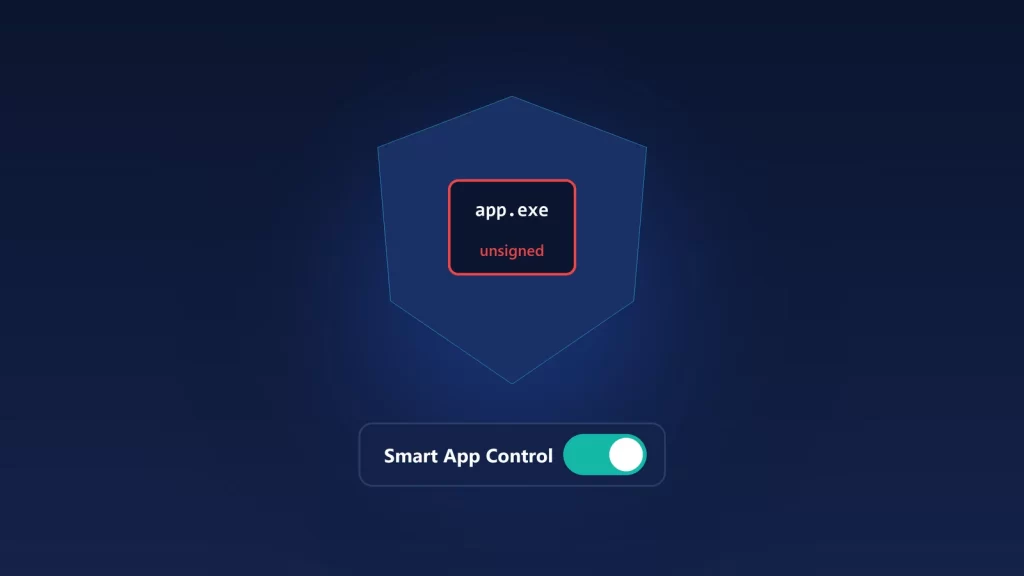
When Smart App Control says it “blocked an app that may be unsafe,” Windows couldn’t confirm the app was safe, and the app has no valid digital signature. There’s no button to allow just that one app. Your options are a signed version of the app, a different app, or turning Smart App Control off. The good news is that turning it off is no longer a one-way decision. Since Microsoft’s March 2026 update, you can turn Smart App Control back on from Windows Security without resetting or reinstalling Windows, which many guides and even some Microsoft pages still say you need. Here’s what each option costs.
Why Smart App Control blocked the app
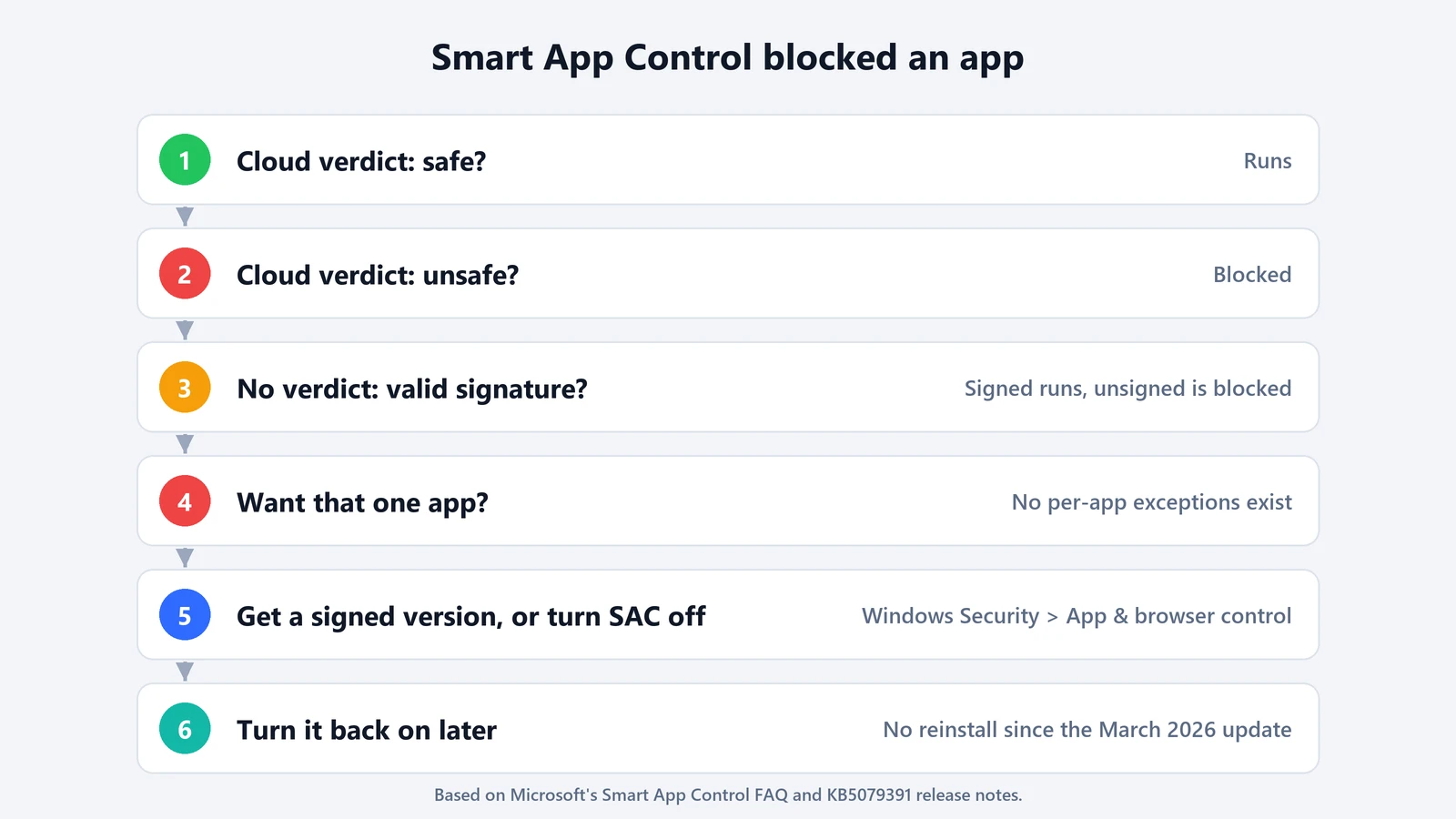
Microsoft’s Smart App Control FAQ describes two checks, in order:
- A cloud prediction. Microsoft’s security service tries to predict whether the app is safe. If it’s confident the app is safe, the app runs. If it believes the app is malicious or potentially unwanted, it’s blocked.
- A signature check. If the service can’t make a confident prediction either way, Smart App Control looks for a valid digital signature. If there is one, the app runs. If the app is unsigned or the signature is invalid, it’s blocked as “untrusted.”
So a block doesn’t mean the app is malware. Very often it means the app is new or rare, so the service has no verdict, and its developer didn’t sign it. Small open source tools, freshly built installers and old utilities hit this all the time.
What you can do about a blocked app
- Look for a signed version. Check the developer’s official download page or the Microsoft Store. Microsoft’s advice is to ask the developer to sign the app.
- Don’t look for an exception. The FAQ says: “There is currently no way to bypass Smart App Control protection for individual apps.” SmartScreen’s Run anyway and antivirus exclusions belong to other features and don’t create an exception in Smart App Control.
- Turn Smart App Control off, if you trust the app and need it. Open Windows Security > App & browser control > Smart App Control settings and choose Off. Your antivirus and SmartScreen keep working; Smart App Control is an extra layer, not your antivirus.
Turning it off affects every app, not just the one you wanted. If you only needed it off to install one program, the next section matters.
You can now turn it back on
For years, turning Smart App Control off was permanent: the only way back was to reset the PC or reinstall Windows. That changed in 2026. The release notes for KB5079391, a March 26, 2026 preview update for Windows 11 24H2 and 25H2, say: “You can turn Smart App Control (SAC) on or off without needing a clean install.” Microsoft had first disclosed it in January and said it was “beginning to roll out.” The April 14 cumulative update, KB5083769 (builds 26100.8246 and 26200.8246), includes the March changes, although the feature itself was rolled out gradually.
To use it:
- Install the latest Windows updates from Settings > Windows Update.
- Open Windows Security > App & browser control > Smart App Control settings.
- Choose On.
Microsoft’s documentation hasn’t fully caught up. The FAQ now says recent updates allow Smart App Control “to be re-enabled without requiring a clean installation.” But Microsoft’s App & browser control page still says it “can be used on new Windows 11 installs only,” and older forum threads say the same. On a fully updated 24H2 or 25H2 PC, the release notes are the more recent word. Because the feature rolled out gradually, an updated PC may not show the option right away.
Why the setting may be off or greyed out
Microsoft’s FAQ lists several reasons Smart App Control can be off or unavailable:
- The PC is managed by an organization, or developer mode is turned on. In those cases Windows turns it off on purpose.
- Windows is in S mode. You need to switch out of S mode, then reset the PC.
- Optional diagnostic data is off. The FAQ still says you’d need to reset or reinstall and choose to send optional diagnostic data during setup. That sits next to its new line about re-enabling without a reinstall, Microsoft doesn’t say whether turning optional diagnostic data on afterwards in Settings > Privacy & security > Diagnostics & feedback is enough. It may be worth trying before a reset, keeping in mind that it means sending Microsoft more diagnostic data.
- Windows 10. Smart App Control is only on Windows 11.
- Windows decided it wasn’t a good fit. Smart App Control starts on new PCs in Evaluation mode.
What Evaluation mode means
According to Microsoft’s App & browser control page, Smart App Control has three modes:
- Evaluation: Windows watches how you use the PC and blocks nothing. If you look like a good candidate, it switches itself to On. If you regularly do things it would get in the way of, such as development work, it switches to Off.
- On: untrusted apps are blocked, and trusted or validly signed apps run.
- Off: no Smart App Control checks.
Once the evaluation ends, or you pick On or Off yourself, the page says you can’t go back to Evaluation without a reset or reinstall. The 2026 change lets you move between On and Off. Nothing Microsoft has published says it brings back Evaluation.
Our take: if you install few apps outside the Microsoft Store and well-known vendors, leave it on. If you build software or install unsigned tools often, Windows will probably have switched it off for you already. Now that turning it back on is easy, switching it off briefly for a trusted install is far less of a commitment than it used to be.