
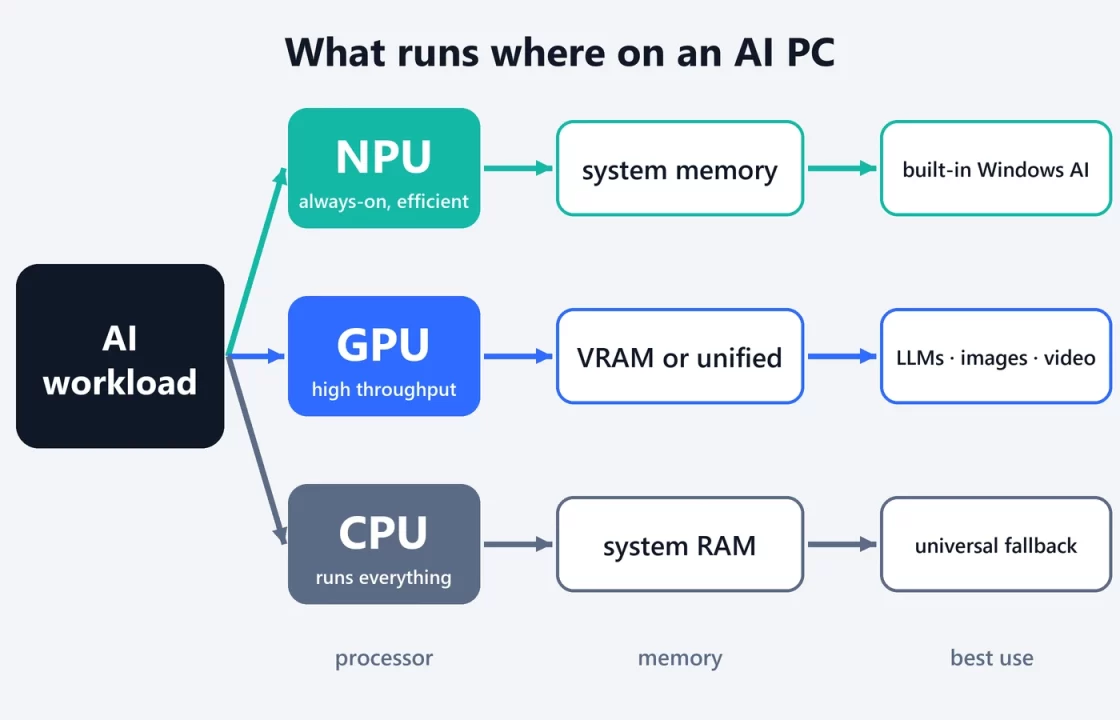
On an AI PC, the processor doing the work depends less on the hardware than on the software you’re running. Built-in Windows features like background blur and the Phi Silica language model are designed for the NPU. The popular local-LLM apps, such as Ollama, LM Studio and llama.cpp, mostly run on the GPU and CPU. And image generation is GPU work. A big TOPS number on the box rates how many operations per second the NPU can perform. It doesn’t tell you whether your favorite AI app can use it.
Three processors, three jobs
Microsoft’s own Windows ML documentation sums up the split in one line each:
- NPU: “battery-efficient, sustained on-device inference, with the most powerful NPUs available on Copilot+ PCs.”
- GPU: “high-throughput workloads such as image, video, and generative AI, which will generally provide maximum performance on discrete GPUs.”
- CPU: “universal fallback.” Every model can run there, just not always quickly.
The NPU’s design goal is efficiency. Intel describes its NPU as “a power-efficient AI accelerator” built into every Core Ultra processor. It’s the right place for AI that runs all the time in the background, where draining the battery would be the bigger problem.
Where the model lives: VRAM, system RAM and unified memory
Each processor reads the model from somewhere, and that often matters more than raw compute:
- Discrete GPU: its own VRAM. A model that fits in VRAM runs on the card; one that doesn’t gets split with the CPU, which runtimes like llama.cpp support but Ollama advises avoiding for best performance.
- CPU: system RAM, shared with Windows and everything else you have open.
- NPU: on Intel’s design, the NPU uses DMA engines “to shuttle the data between system memory DRAM… and a software managed cache,” executing “primarily out of scratchpad SRAM.” In other words, it works from the same system memory, not from a pool of its own.
- Apple Silicon and similar unified-memory designs: CPU and GPU share one pool, with limits on how much the GPU should use.
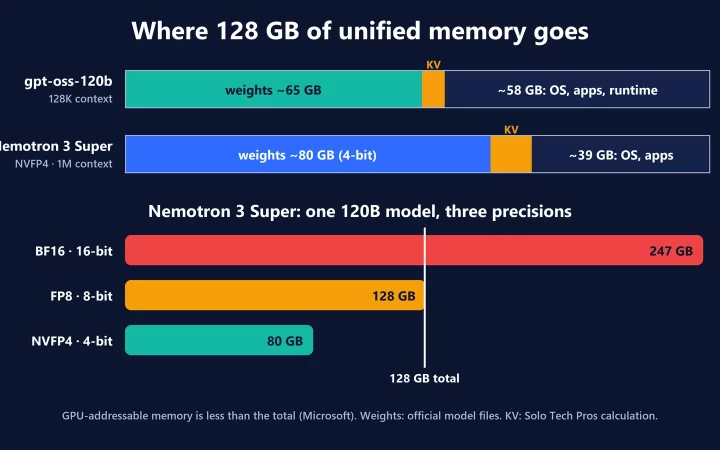
That’s why memory, not TOPS, usually decides which local LLMs you can run. We worked through the numbers in what AI you can actually run with 16 GB of RAM.
Why a high-TOPS NPU isn’t automatically faster for LLMs
Copilot+ PCs require an NPU rated at 40 TOPS or more. TOPS (trillions of operations per second) is a peak throughput figure. Whether a language model benefits from it depends on three things the number doesn’t capture.
1. The model has to be prepared for that NPU. NPUs run models through vendor-specific runtimes. Windows ML reaches them through execution providers: OpenVINO for Intel, QNN for Qualcomm, VitisAI for AMD. These require Windows 11 version 24H2 or later. A model in the format your favorite app uses won’t automatically run there.
2. NPU LLM pipelines come with constraints. Intel’s OpenVINO documentation says its NPU LLM pipeline “leverages the static shape approach,” supports input prompts “up to 1024 tokens” by default, and expects models compressed to 4-bit symmetric weights. Those are workable limits for short assistant tasks, and tight ones for long documents or coding sessions.
3. The popular local-AI apps mostly target CPU and GPU. Ollama’s hardware page covers NVIDIA, AMD and Apple GPUs. llama.cpp lists backends for CUDA, Metal, Vulkan and others; its Snapdragon (Hexagon) and OpenVINO entries are the exceptions, and OpenVINO is marked “in progress.” If you install one of these apps on a Copilot+ PC, assume the NPU sits idle unless the app says otherwise.
The vendors are closing the gap in different ways. AMD’s Ryzen AI software can run LLMs NPU-only or in a “hybrid” mode that splits work between the NPU and integrated GPU, on Ryzen AI 300 chips only. Earlier Ryzen 7000 and 8000 parts are limited to GPU and CPU.
What runs where: a workload guide
| Task | CPU | GPU | NPU | Best fit | Why |
|---|---|---|---|---|---|
| Background AI (camera blur, eye contact, voice focus) | Fallback | Possible | Designed for it | NPU | Runs constantly, so efficiency matters most. Windows Studio Effects require an NPU of 10+ TOPS. |
| Built-in Windows AI features (Phi Silica, OCR, image description) | Fallback | Phi Silica also on supported NVIDIA/AMD GPUs | Default on Copilot+ PCs | NPU on Copilot+ PCs | Microsoft routes Windows AI APIs to the NPU on Copilot+ PCs; most require one. |
| Small language models in apps you install (Ollama, LM Studio, llama.cpp) | Works | Works | Rarely used by these apps | GPU, else CPU | These runtimes target CPU/GPU backends. |
| Larger LLMs and long prompts | Fallback | Best if it fits in VRAM or unified memory | Constrained (prompt limits, static shapes) | GPU | Memory capacity and runtime support decide it. |
| Image and video generation | Fallback | Designed for it | Only in specific built-in features | GPU | Microsoft lists image, video and generative AI as GPU workloads. |
| Speech recognition | Works | Works | On Copilot+ PCs | Depends on the app | Windows’ speech recognition API also runs on non-Copilot+ PCs. |
| Developer apps using Windows ML or Foundry Local | Always available | Picked if present | Picked if the model has an NPU variant | Automatic | Foundry Local downloads the model variant that matches your hardware. |
How to tell what your PC is actually using
- Open Task Manager > Performance. Microsoft points here to check which GPU and NPU your PC has; look for the GPU and NPU entries in the left panel.
- In Ollama,
ollama psshows whether a model is loaded on the CPU, the GPU or both. - If you develop with Foundry Local,
foundry model listshows which execution providers are active on your hardware.
What this means when buying
If you want Windows’ built-in AI features, the NPU and the Copilot+ label matter. Microsoft requires an NPU of 40+ TOPS, 16 GB of DDR5/LPDDR5 memory and a 256 GB SSD. If you want to run your own models in the apps people actually use for local AI, prioritize memory and a capable GPU: VRAM on a discrete card, or plenty of unified memory. That’s also where Microsoft’s own “hybrid intelligence” plans point for bigger models, as we explained in what hybrid intelligence means for your PC.
Hardware requirements and runtime support checked on October 9, 2026.