There’s no single test that proves an image is real. What you can do is run three checks in order: look for Content Credentials, check for a watermark from the company that made the AI tool, and then check where the image came from. A positive result from the first two can tell you a lot. A negative result tells you much less than most “AI detector” pages suggest, and knowing why is what keeps you from being fooled.
1. Look for Content Credentials
Content Credentials are a kind of signed label stored inside a file. They’re based on an open standard from the Coalition for Content Provenance and Authenticity (C2PA), and they can record which app or device created an image, how it was edited, and whether AI tools were involved. Google’s Gemini help describes them as acting “like a digital passport.” Each credential is cryptographically signed, so if someone changes the image or its history without updating the credential, the signature no longer matches and a verifier can flag it as tampered.
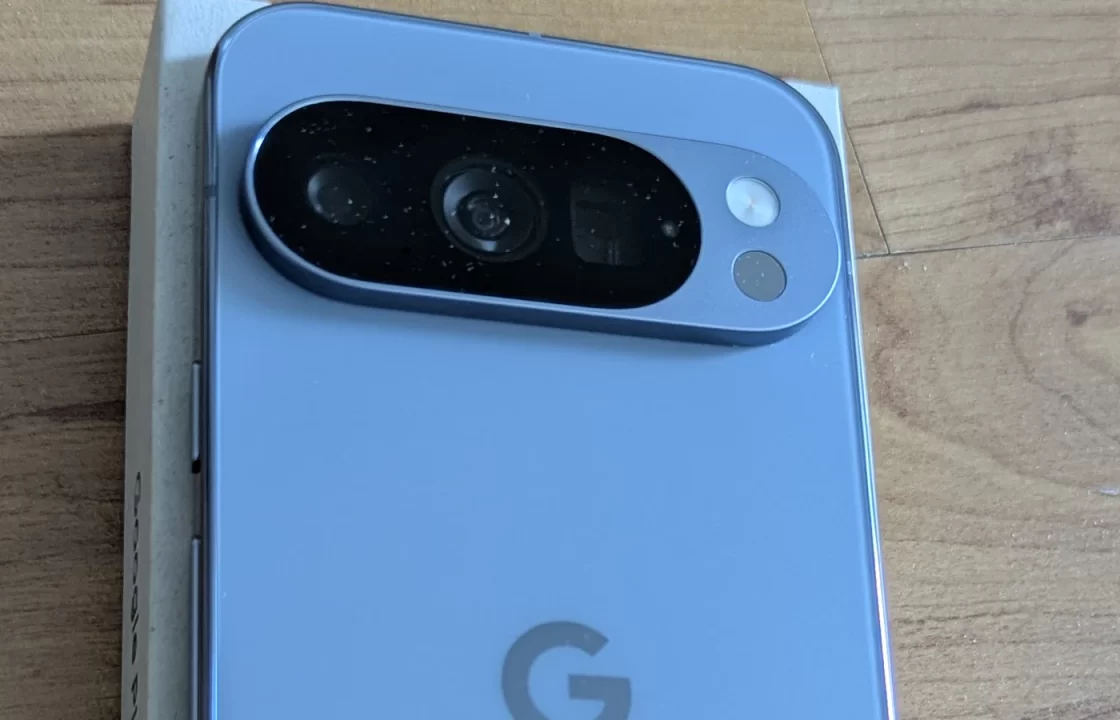
The labels show up on both sides of the line. AI tools can attach them to generated images, and cameras can attach them to real photos: Google says the Pixel 10 was the first smartphone to provide Content Credentials for images in its native camera app.
To check an image, upload it to a Content Credentials verifier such as the one in Gemini (see the next section) or the Content Credentials site. If the image has valid credentials, you’ll see who signed them and the recorded history. In Gemini, for example, a result can read “Info by Google LLC.”
What a missing credential means: very little. The C2PA itself notes that credentials “can be separated” from the file they describe, whether by accident or on purpose, and a screenshot is a new file that doesn’t carry the original file’s embedded information. And even when credentials are present, Google’s help is clear that they don’t tell you whether an image is “definitely AI-generated.” They tell you what the signing app or device recorded.
2. Check for a Google SynthID watermark in Gemini
SynthID is an invisible watermark that Google’s AI models embed in the images, video and audio they generate or edit. Unlike metadata, it’s embedded in the content itself, and Google says it “will usually still exist” after resizing, recoloring or compression, though heavy editing can make it undetectable.
Gemini can check for it. Google added image verification to the Gemini app on November 20, 2025, and the current tool also checks Content Credentials. According to Google’s help page:
- Sign in at gemini.google.com or in the latest Gemini app.
- Click Add files and upload one image (up to 100 MB).
- Ask something like “Was this image created or edited by Google AI?” or “Is this AI-generated?”
If you’re working from a screenshot, crop it tightly around the image first and don’t upload a collage; Google says that gives the most accurate result. You get roughly 10 image checks in any rolling 24-hour window. Content Credentials checks are available on the web and in the Android app, with iOS support listed as coming soon.
The catch: Gemini “can currently only recognize content created by Google AI tools.” If no SynthID watermark is found, Google says the image “wasn’t created or edited by Google AI, but it could have been created by other AI systems.” Gemini may also return an unclear result for very simple images or minor edits.
Google said on May 19, 2026 that it was bringing SynthID verification to Search through Lens, AI Mode, Circle to Search and Gemini in Chrome, where you can ask “Is this AI generated?”, with Content Credentials checks to follow in Search and Chrome “in the coming months.”
3. Check the context
When the technical checks come back empty, which is common, you’re back to ordinary verification:
- Reverse image search. Search for the image with Google Images or Lens to find earlier copies and the original source. An image that first appeared on a known photographer’s page years ago is a different story from one that first appeared yesterday on an anonymous account.
- Metadata in the original file. If you have the original file rather than a screenshot, its EXIF data may include the camera model, date and settings. Metadata can be edited, so treat it as a clue, not proof.
- Visual details. Google’s help lists the kinds of errors to look for: garbled text, mistakes in hands, teeth or backgrounds, inconsistent shadows and lighting, and unnaturally repetitive patterns. Newer image models make these errors less often, so their absence proves nothing.
What each check can and can’t prove
| Check | A positive result means | A negative result means |
|---|---|---|
| Content Credentials | A signing app or device recorded this history, including any AI tools it reports | Almost nothing: credentials can be separated from a file, and a screenshot doesn’t carry the original’s |
| SynthID in Gemini | All or part of the image was made or edited with Google AI | Not made with Google AI. It could still come from another AI tool |
| Reverse image search | You may find the original source and its date | The image may simply be new, or not indexed yet |
| Visual artifacts | A strong hint, especially with garbled text or impossible details | Nothing, since good AI images often have none |
What about AI detector websites?
Plenty of sites will give you a percentage score for “AI-generated.” Google’s guidance doesn’t rely on them, and we haven’t seen independent, published testing that would let us recommend one, so we don’t. If you use one, treat its score as one more hint next to the checks above, never as a verdict on its own.
One last practical point: anything you upload to Gemini for verification is handled under your Gemini privacy settings, like any other upload. If that matters for the image you’re checking, read what Gemini’s Keep Activity setting means for your chats and uploads first.