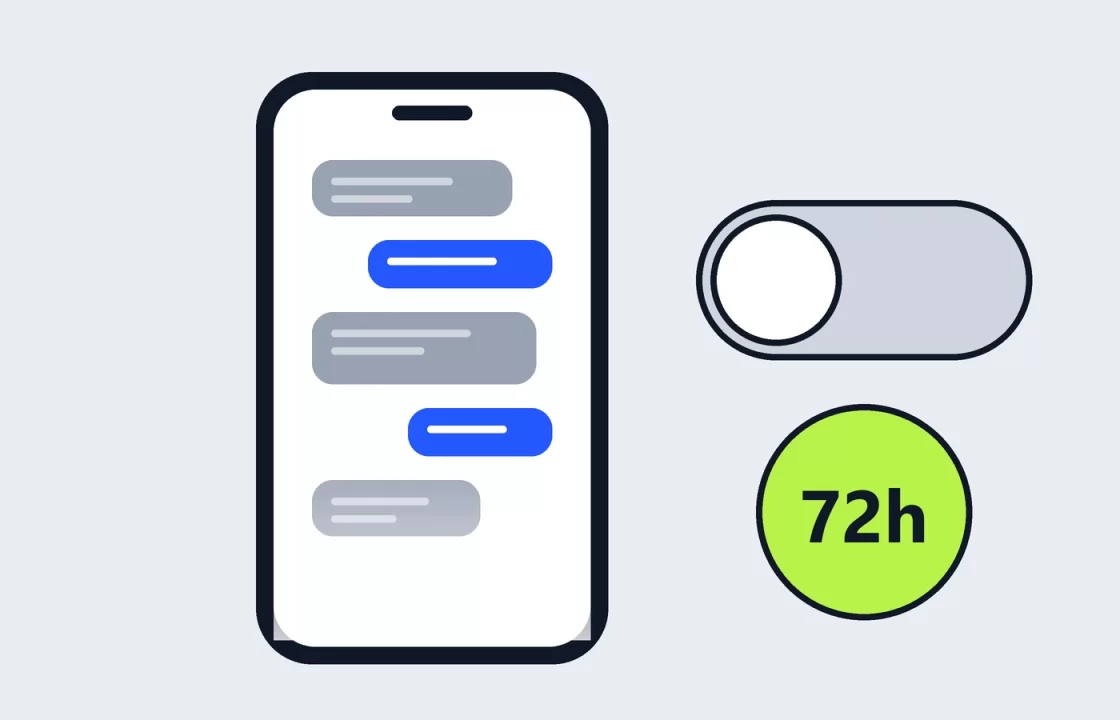
If Gemini tells you Keep Activity is off, Google isn’t saving your Gemini chats to your account’s activity history, and it won’t use your future chats to train its AI models unless you send feedback. That’s the useful part. What “off” doesn’t mean is that nothing is kept: Google still saves each conversation with your account for up to 72 hours, and still uses it to respond to you and to protect its services, sometimes with help from human reviewers.
Here’s what the setting actually controls, what you give up by turning it off, and the options in between.
Keep Activity and Gemini Apps Activity are the same setting
Google announced on August 13, 2025 that the “Gemini Apps Activity” setting would be renamed “Keep Activity.” The old name hasn’t disappeared, though. Google’s own help page for the mobile app still sends you to Gemini Apps Activity in the menu to change the Keep Activity setting, and the history page itself is still called your Gemini Apps Activity. So if you see either name, it’s one switch.
What happens when Keep Activity is off
According to the Gemini Apps Privacy Hub, with the setting off:
- Your future chats don’t appear in your activity.
- They aren’t used to train Google’s AI models, unless you choose to send feedback.
- They’re still saved with your account for 72 hours, so Gemini can respond, process any feedback, and “protect Google, its users, and the public.”
That last point is the one most explanations skip. Google says that even with Keep Activity off, it “still uses your chats to respond to you and help protect Google, our users, and the public, including with help from human reviewers.” Turning the setting off stops your chats from being used to improve Google’s models; it doesn’t take them out of Google’s hands entirely.
Feedback is the exception to the no-training rule. If you choose to send feedback while Keep Activity is off, Google says it collects that feedback plus context to understand it, including the last 24 hours of your chats and anything in them, like uploads. Reviewed feedback and the associated conversations are kept for up to three years, disconnected from your Google Account.
Deleting your activity doesn’t delete chats that were already reviewed
If Keep Activity was on for a while before you switched it off, some of those older chats may already have been reviewed. Google is explicit that chats reviewed by human reviewers, along with related data like your language, device type and location info, “are not deleted when you delete your activity.” They’re kept for up to three years. Clearing your history removes it from your account, not from that reviewed set.
What you lose when you turn it off
The trade-off is mostly about features that depend on saved activity:
- Connected apps. Google’s help page lists only Device assistance, Gemini Notebook, Messages, Phone and WhatsApp as available when Keep Activity is off. The Privacy Hub adds that other connected apps, like Google Workspace, are unavailable until you turn it back on.
- Chats with Gems. Gems you create are still saved, but the chats you have with them aren’t.
- Your history. You can’t go back to an earlier conversation, because it was never added to your activity.
If you mainly use Gemini for one-off questions, none of that may matter. If you rely on it reading your Gmail or Drive, turning Keep Activity off will break those workflows.
How to turn Keep Activity on or off
On a computer:
- Go to gemini.google.com.
- Click Settings & help > Activity.
- Near the top, click On, then choose Turn off or Turn off and delete activity.
In the Gemini app on Android, iPhone or iPad:
- Open the Gemini app.
- Tap Menu at the left, then your profile picture or initial, then Gemini Apps Activity.
- Near the top, tap On, then Turn off or Turn off and delete activity.
The same page works the other way: if the setting is off and you want it back, click Off and follow the prompts. You can also reach it at myactivity.google.com/product/gemini.
Two middle grounds
Auto-delete. If you want to keep your history and connected apps but not forever, change how long activity is stored. By default Google auto-deletes Gemini activity older than 18 months; you can switch that to 3 or 36 months, or turn auto-delete off. It’s on the same Activity page, under Deleting activity older than or Choose an auto-delete option. Note that Keep Activity stays on in this case, so your chats can still be used to improve Google’s services.
Temporary chat. For a single sensitive conversation, start a temporary chat instead of changing the whole setting. On gemini.google.com, click Temporary chat next to New chat. Google says temporary chats don’t appear in your activity or recent chats and aren’t used to train its models, but, like everything else, they’re kept for 72 hours. You also can’t use Gems, connected apps or personalized responses in them. Temporary chat needs a personal Google Account and isn’t available in Gemini in Chrome or Gemini in Google Messages.
If you can’t change the setting
Everything above applies to personal Google Accounts, where Keep Activity is on by default if you’re 18 or over. With a work or school account, your Google Workspace administrator controls these settings, and Google notes you may not be able to change retention or even see how long your chats are kept. Temporary chat isn’t available on those accounts either.
So, should it be on or off?
Keep it on if you use Gemini with your other Google apps or need to come back to old chats, and set auto-delete to something shorter than 18 months. Turn it off if you’d rather your conversations not be used to train Google’s models, and accept losing history and most connected apps. Either way, don’t type anything into Gemini you wouldn’t want a reviewer to see: with Keep Activity on or off, Google’s own documentation leaves the door open to human review.